Zerodha, one of the most well-establish names in the broker market, stands at the second largest place. Today, we come with one of the most significant usage guides of the Zerodha application, termed Backoffice. By accessing the Backoffice of Zerodha, users can get each and every detail regarding the status of their accounts. The article is going to cover the login process, features, and information about Q Zerodha Backoffice.
Remember: This back office is now not in force anymore. It has been replaced by the console. You can read this post just for reference purposes.
How to Access Q Zerodha BackOffice?
There are two particular ways by which you can access the back office of Zerodha.
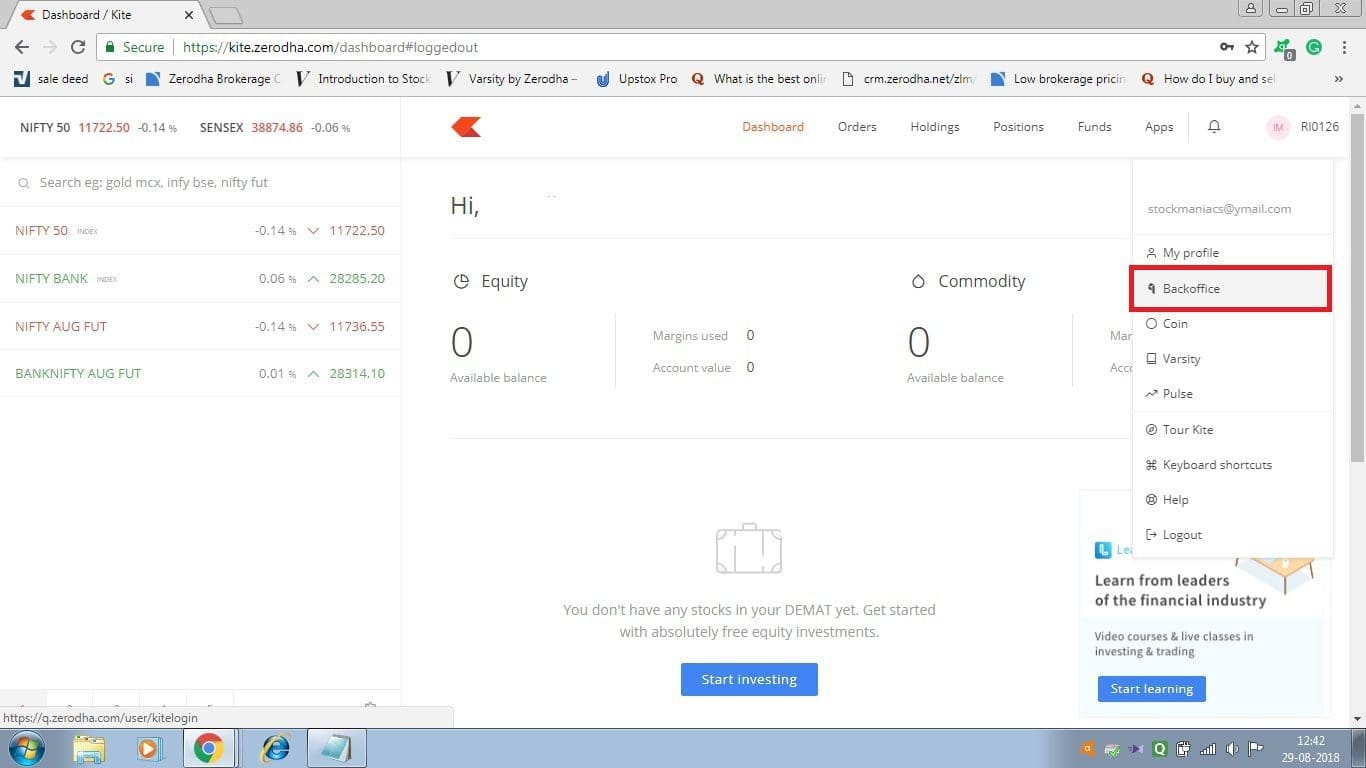
- The first way is to directly make an entry to your back office from the Zerodha Kite. On the up-right corner of your account, you will find your client-id details, from there you can go to your back office.
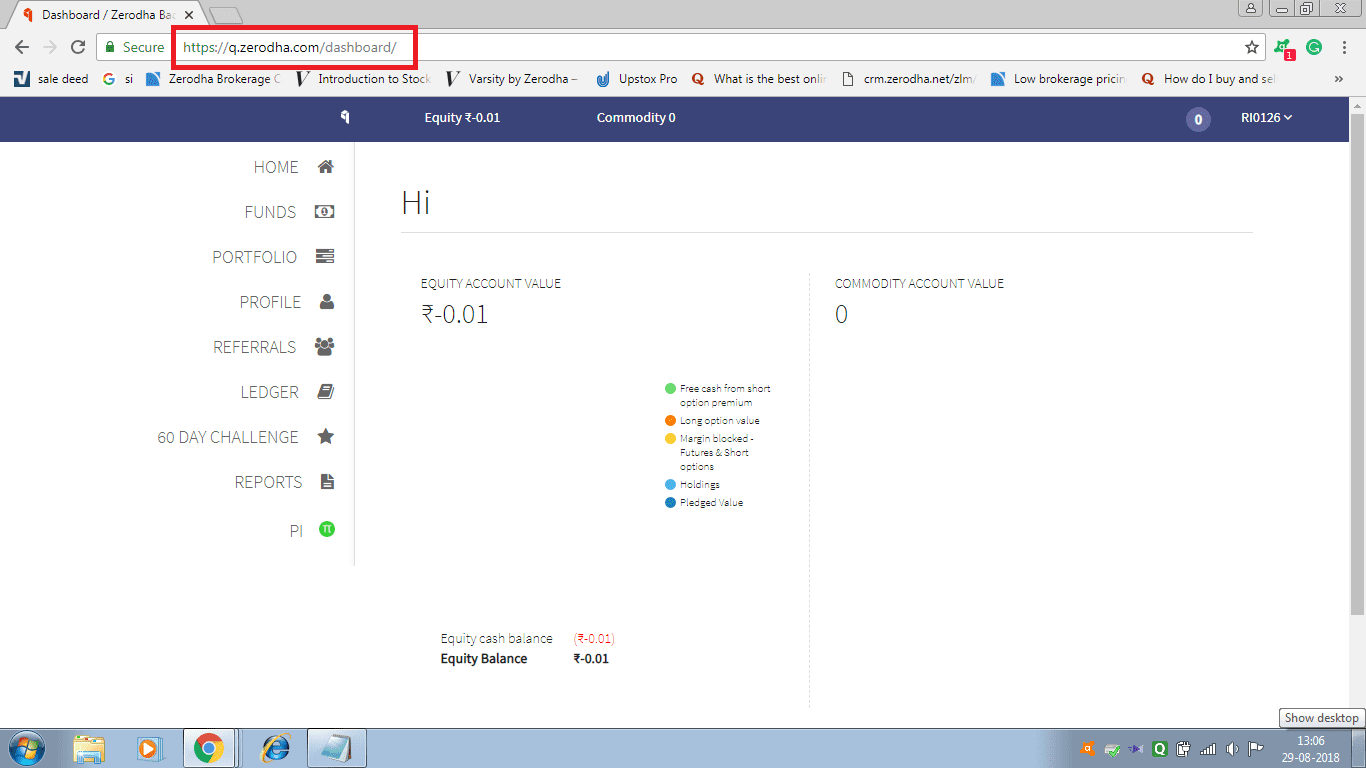
- The second way is to directly log in to the Q Backoffice in Zerodha. For that, you need to go through q.zerodha.com (now not working). From there, you can directly access your back office status.
Q Zerodha BackOffice Usage Guide
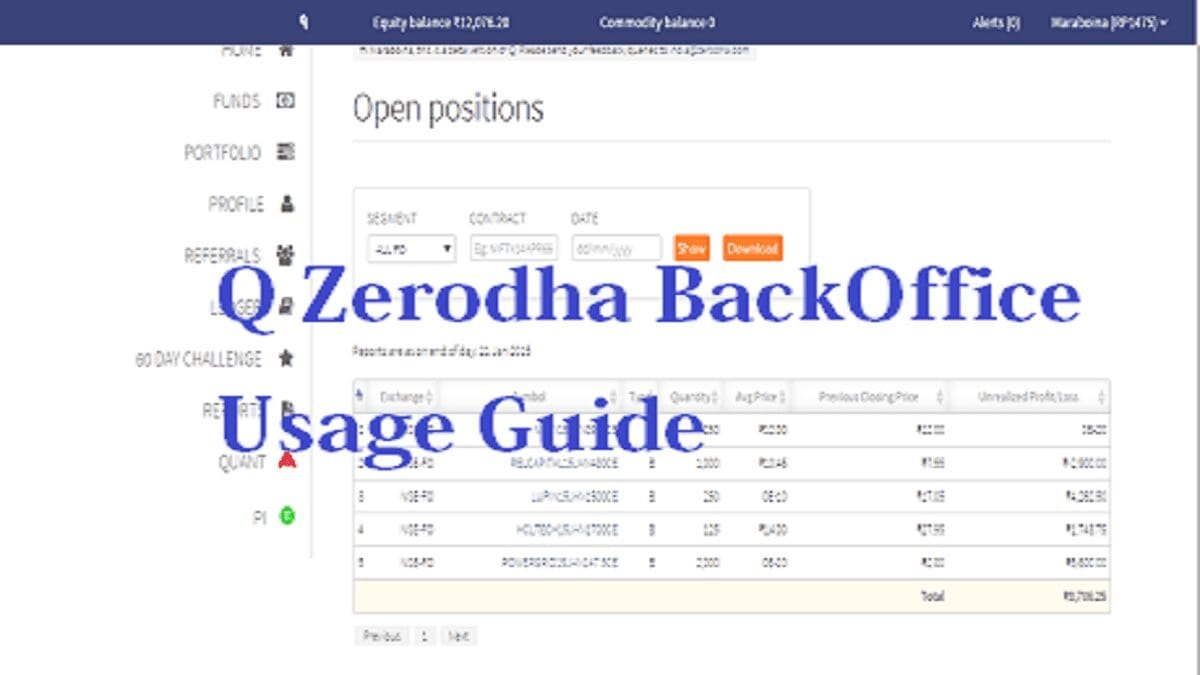
Once you open your back office, you will get many tools like Home, Funds, Portfolio, Profile, Referrals, Ledger, 60-day challenge, Reports, and Pi. You can check the above image to get an overall view of it. Let’s have a quick look at the brief descriptions of the mentioned tools.
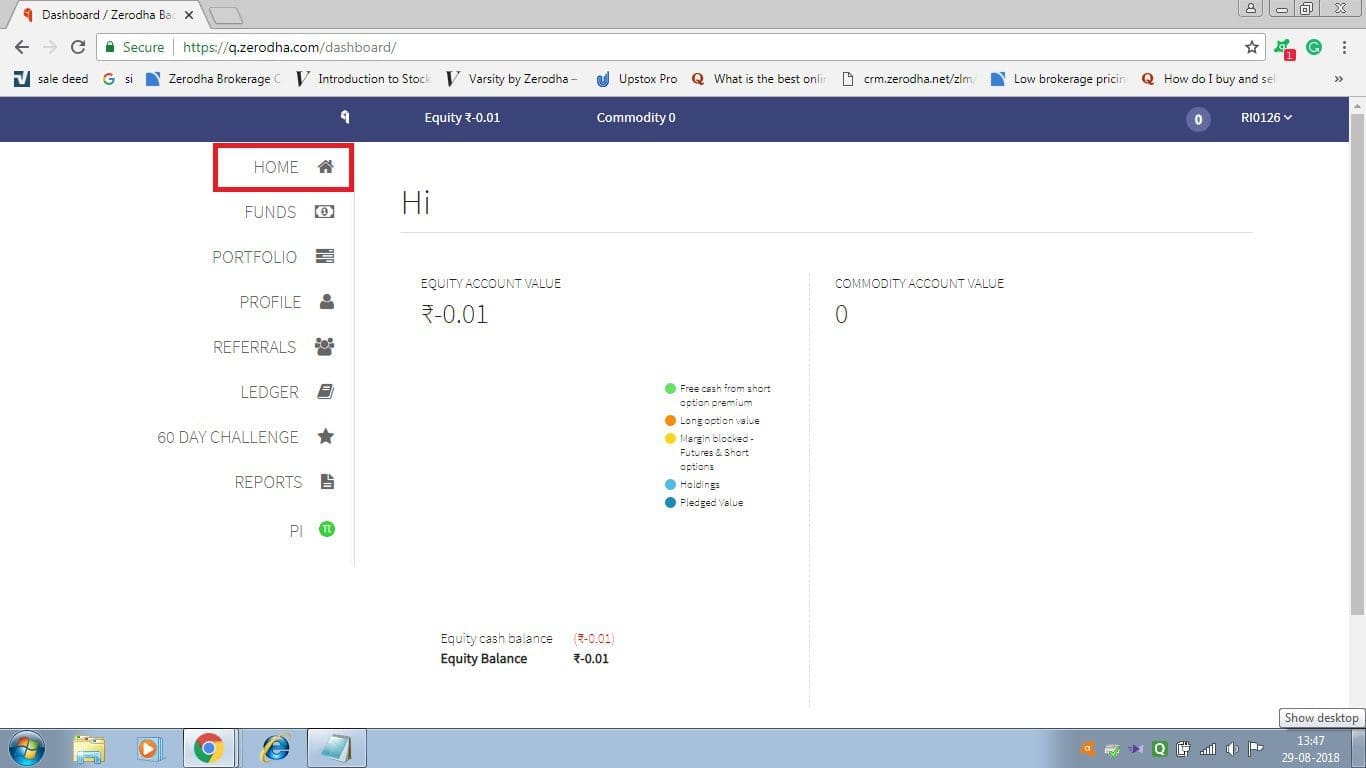
Home
In the home section, users can go through their equity-commodity account value along with details. Apart from this, it shows the available balance of the account. For your understanding purpose an image is attached below:
Funds
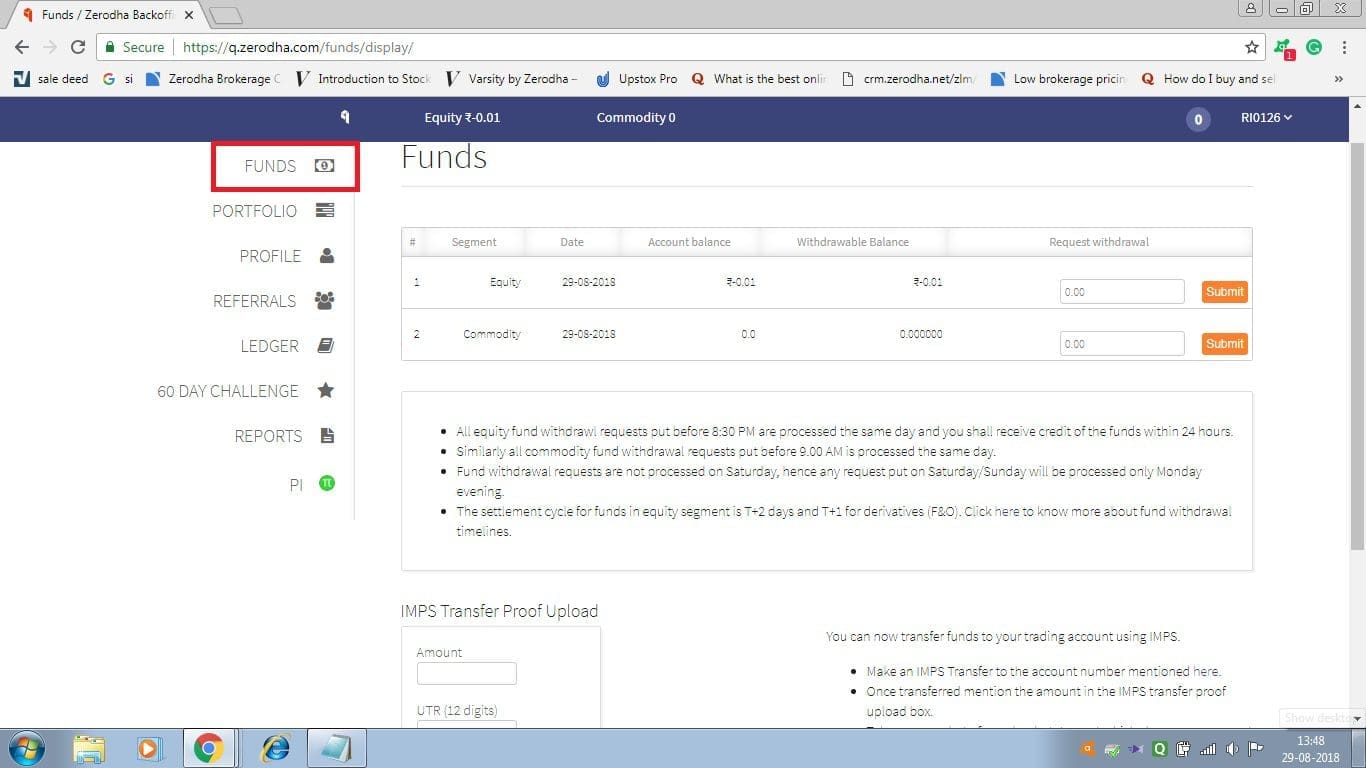
Through the funds’ option, traders get overall detail regarding the amount of holding and withdrawn funds. Besides this, there is the facility of IMPS (Immediate Payment Service) by which you can transfer funds to your trading account.





Portfolio
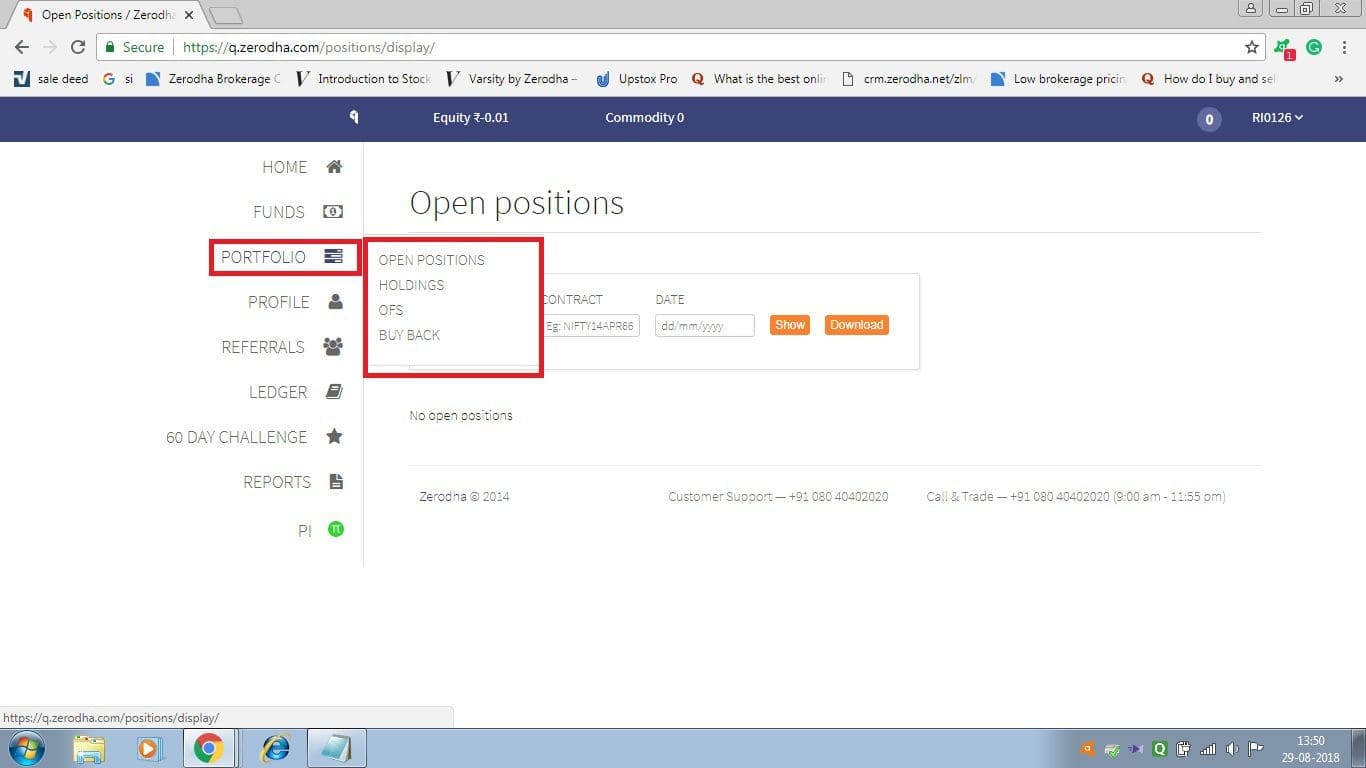
The portfolio option includes open position, holdings, OFS (Offer for Sale), and buyback. In other words, the portfolio shows you a brief presentation of your entire account. From here, you can take out the entire state of your account including your current position and holdings.
Profile
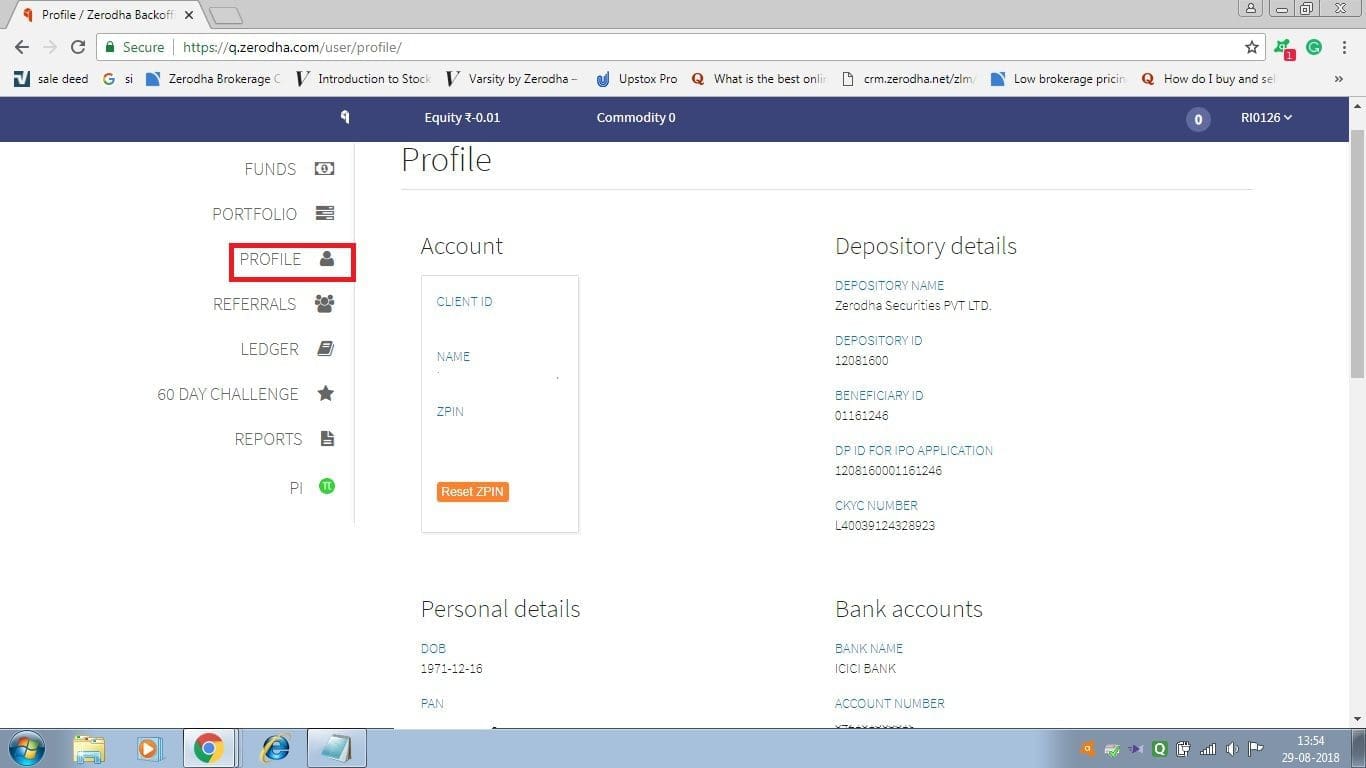
Profile carries the most valuable information about your trading account. This includes your client id, name, and Zpin (the Zpin is very important, in the future regarding any account-related problem, Zerodha may ask for your ZPin details). Have a look at the right side of the profile. The right-side details are necessary for transferring of account. In order to book an IPO of any company, DP ID for IPO is important. The downside of the page, you will get your personal and bank account details.
Referrals
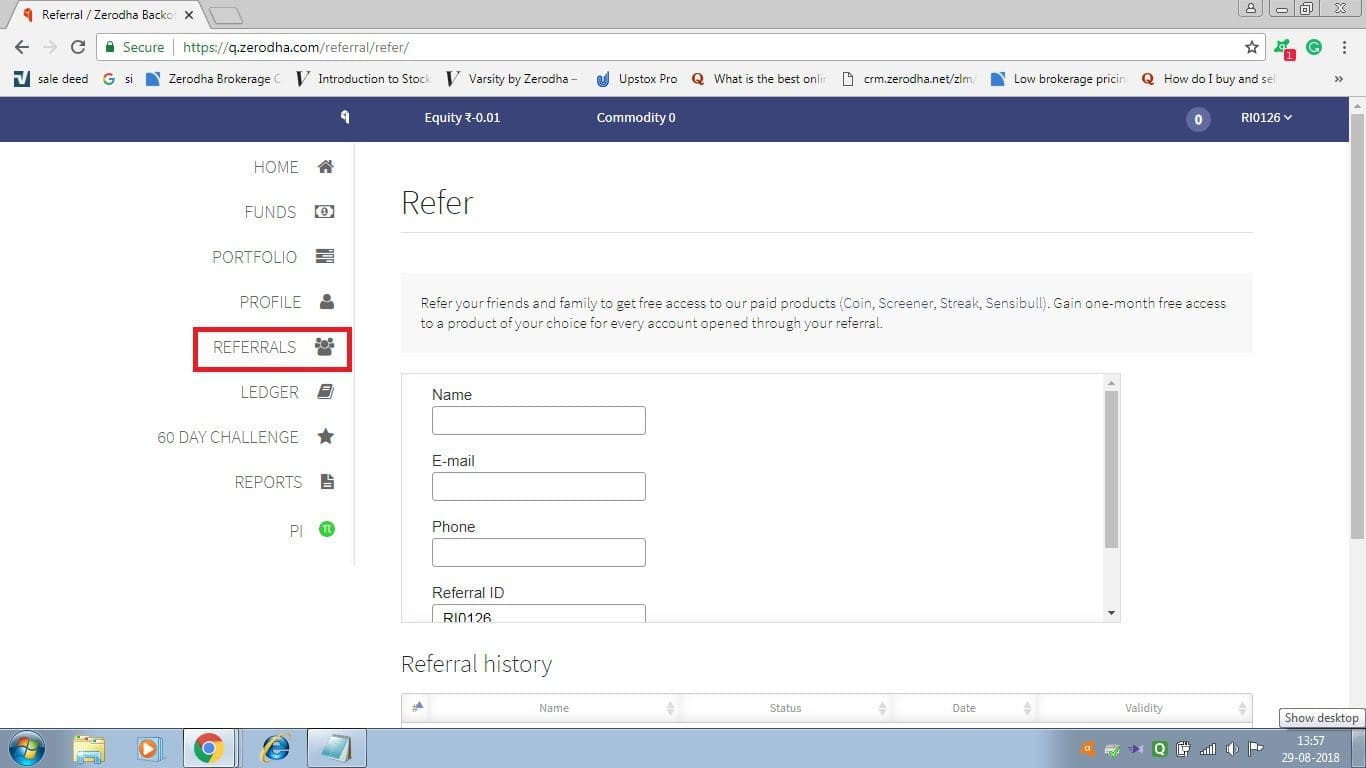
Zerodha has launched a referral benefit. There if you are able to refer any of your family members, or friends, to open an account in Zerodha, you will get attractive gifts and offers for that (terms & conditions applied).
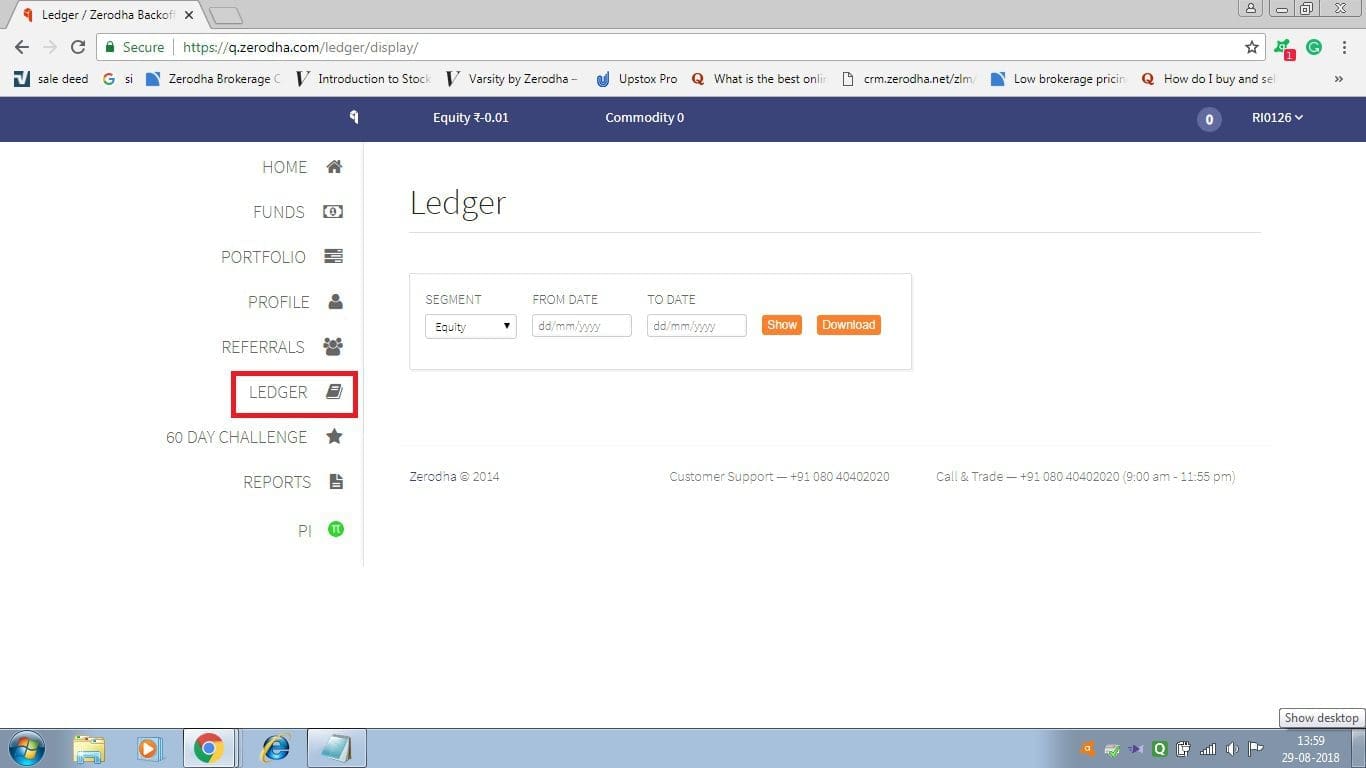
Ledger
Through the ledger section. traders can see the transaction statement along with billing details. The details are simply described by using a clear pie chart. You just have to put the details in there and click on the Show option.
60-day Challenge
This particular offer is not available in Zerodha now. Zerodha has stopped the offer for some obvious reason.
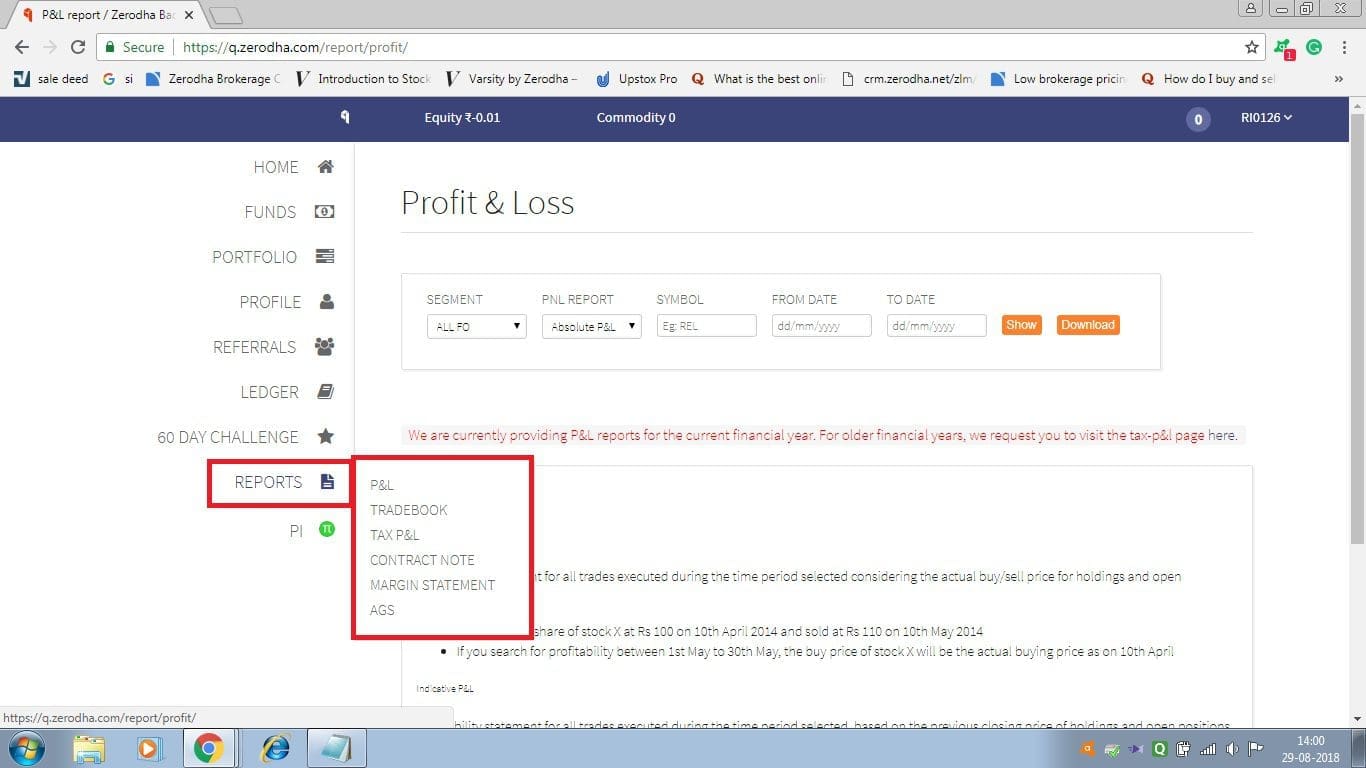
Reports
The report section can lead you to various other important parts of your account. This includes P&L (Profit and Loss Statement), Tradebook, Tax P&L, Contract note, Margin statement, and AGS (Annual Global Statement). The report section mainly shows the overall profit and loss of your account. It gives a clear statement regarding annual as well as periodical profit loss statement details. You can check or download the statements from there.
Pi
Pi is a trading platform (software-based), developed by Zerodha. It includes many advanced features and easily installable software. It includes advanced chartings, Algos, backtesting, tools, and techniques. In order to download Pi, you have to have an account in Zerodha. You can install the particular software by using the Download Pi option.
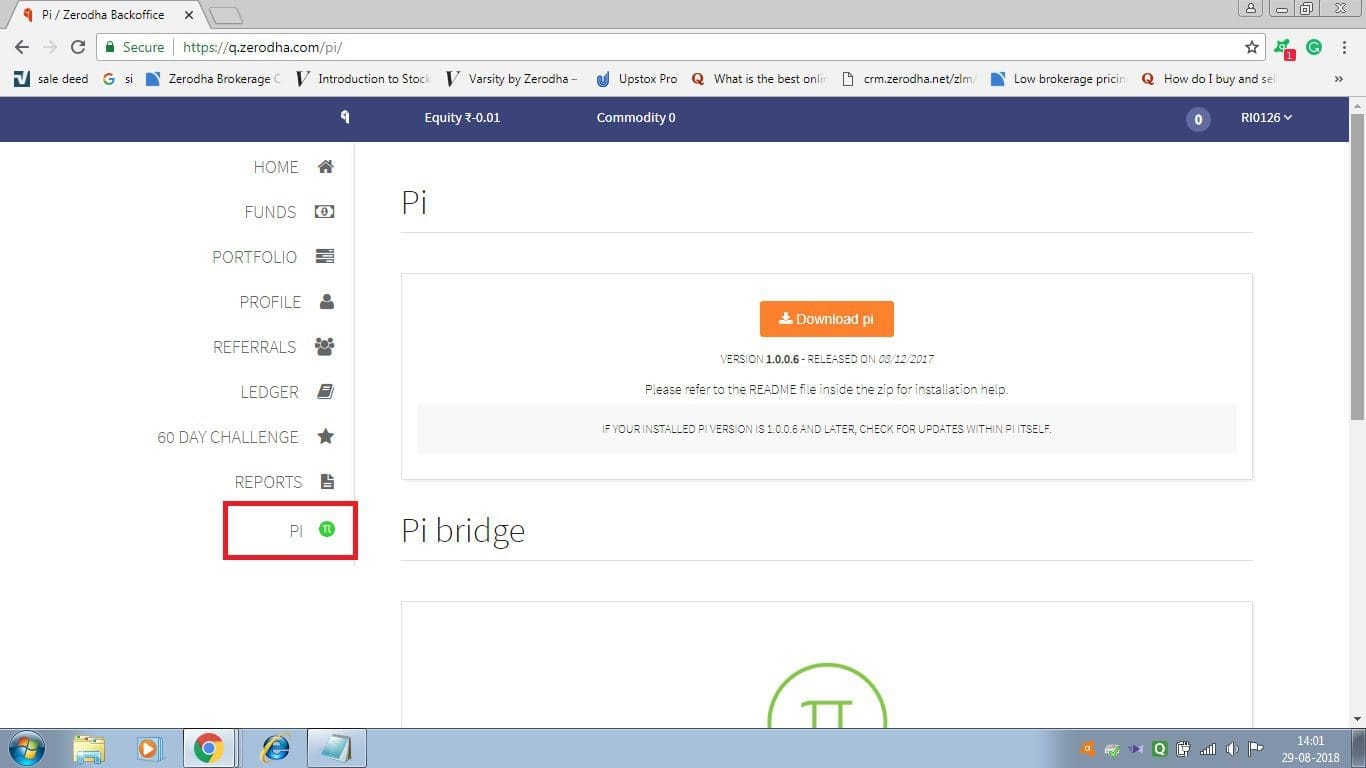
There is also a Pi Bridge option, that provided the algo trading facility from various charting platforms like AmiBroker, etc.
Conclusion
Q was the only back office for Zerodha for a long time. However, it was discontinued in 2019 and they have replaced it with the console.