

Zerodha’s Pi platform contains 120 days of continuous intraday data. This continuous intraday data is also called IEOD. IEOD is the short form of Intra-EOD. This means it’s Intraday (I) real-time quotes but you get access to it only end of the day (EOD). But this IEOD data is specifically helpful if you want to backtest in advanced platforms like Amibroker. Hence, in this post, we will provide a step-by-step guide on how you can import this IEOD data from Zerodha Pi to Amibroker.
Steps to Import IEOD Data from Zerodha Pi to Amibroker
Step 1: Get access to Zerodha Pi
First, if you do not have Zerodha Pi, apply immediately HERE.
Step 2: Run the Pi platform
Once you have access to Zerodha Pi, run Pi platform. Login with your id and password, answer the security questions and Pi will be logged in.
Step 3: Open the market watch and add the scrip
Open your market watch. Add the scrip whose IEOD data you want to import in the market watch. Let’s take Reliance Industries’ share for this purpose.
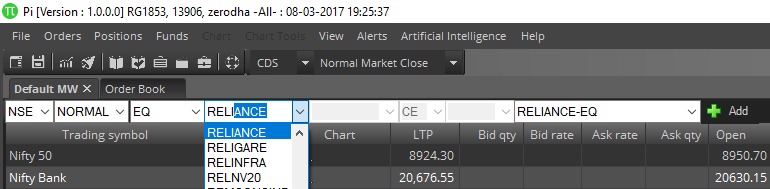
Step 4: Open RELIANCE-EQ chart dialogue
Once Reliance scrip is added to the market watch, select the scrip, right click and click CHART OR press Shift+C on the keyboard. This will open the RELIANCE-EQ chart dialogue.
Step 5: Select the chart parameters
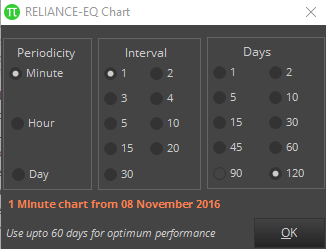
In the chart parameters select Periodicity = Minute, Interval = 1, Days = 120 and click OK.
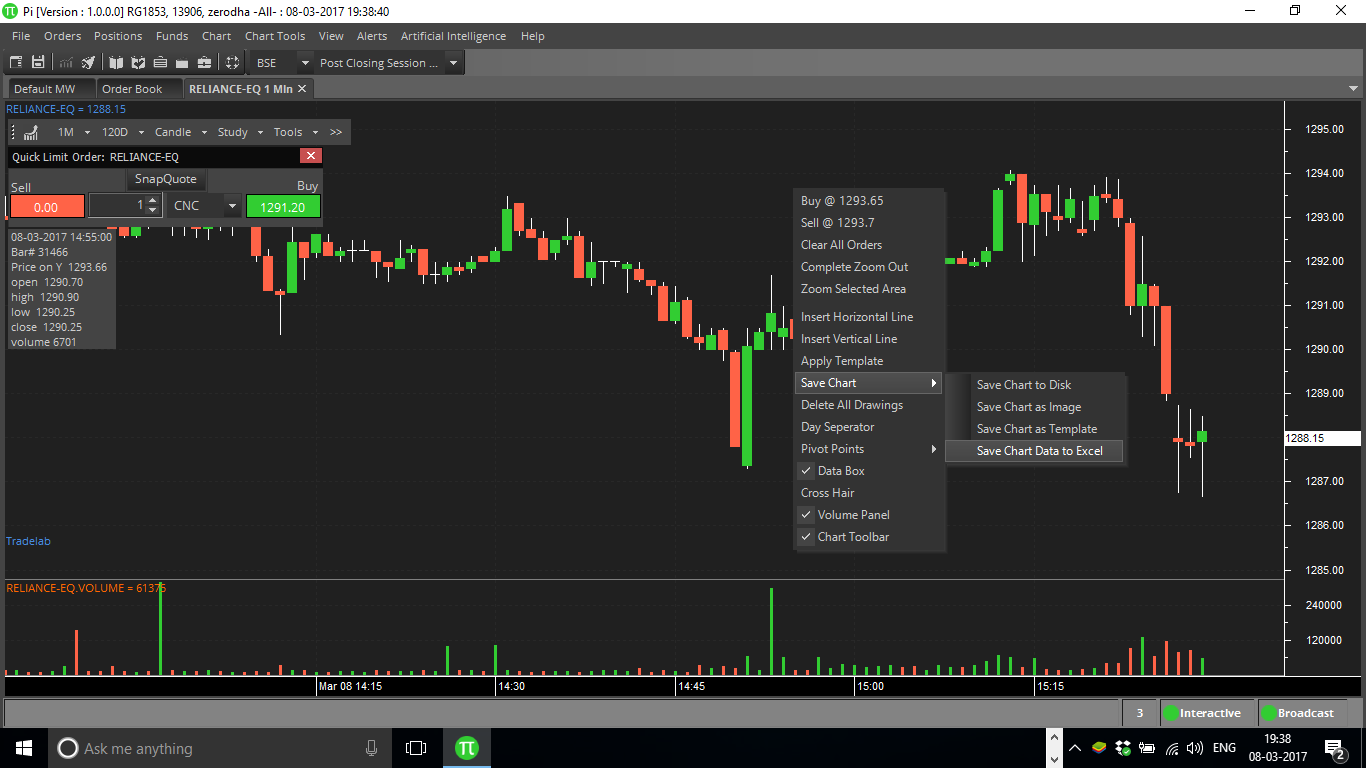
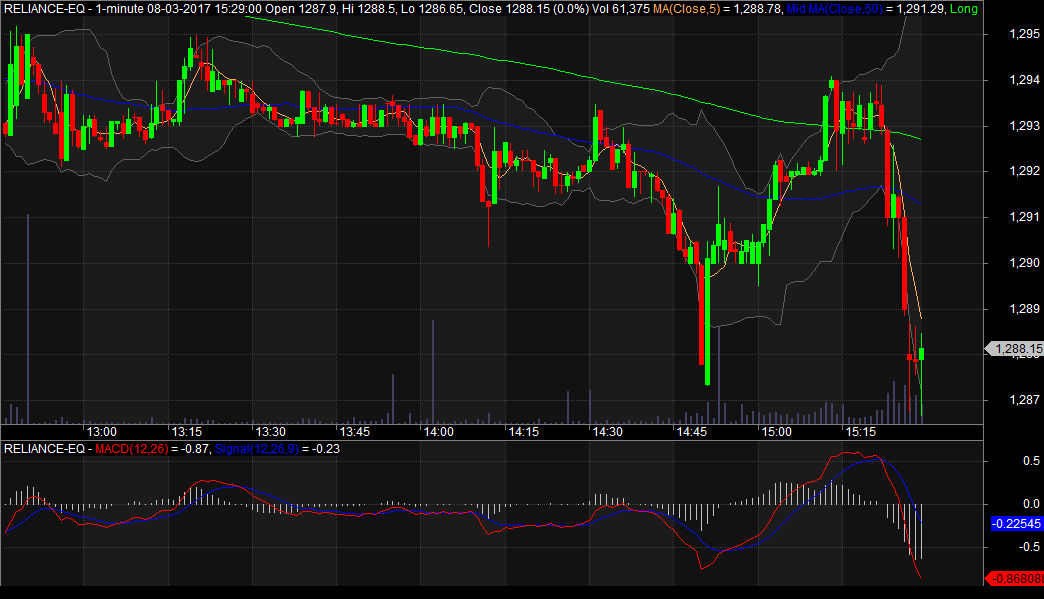
This will open Reliance Equity’s 1-minute interval continuous chart for 120 days.
Step 6: Save chart data to Excel
Now the chart is opened, let’s import the chart from Zerodha Pi to Amibroker. Right-click on the chart, select Save Chart and select Save Chart Data To Excel.






Step 7: Detach time from date
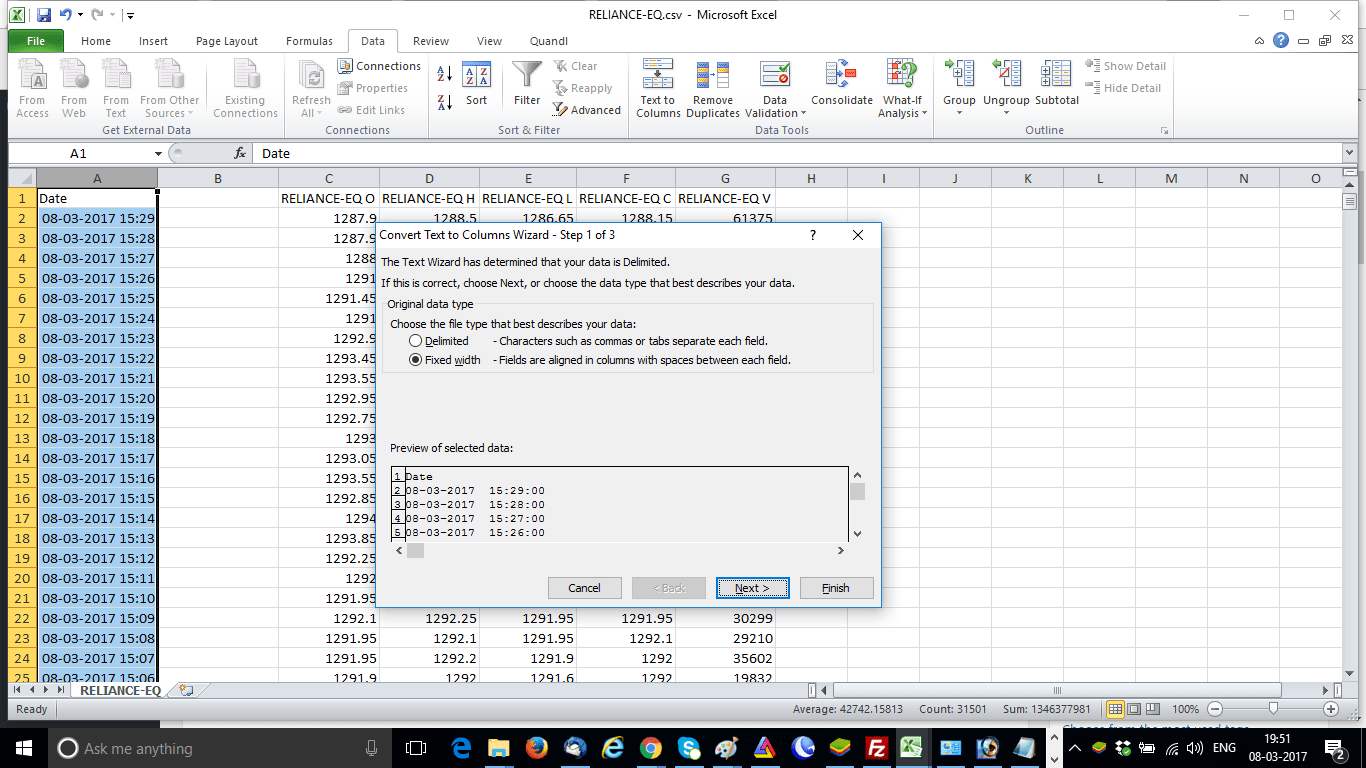
As this is large data, this will take some time and the Excel file will open. The Excel file will have 6 columns – Date, RELIANCE-EQ O, RELIANCE-EQ H, RELIANCE-EQ L, RELIANCE-EQ C, RELIANCE-EQ V. Now the date column contains time also (like 08-03-2017 15:29). Therefore, first we need to detach time from date.
Step 8: Separate the time column
First, make a blank column on the right to column A. This will be a new column B. Select the date column and click Data –> Text To Columns. Select the Fixed Width radio button and click Next. Click Next again, make sure the General radio button is selected, and click Finish.
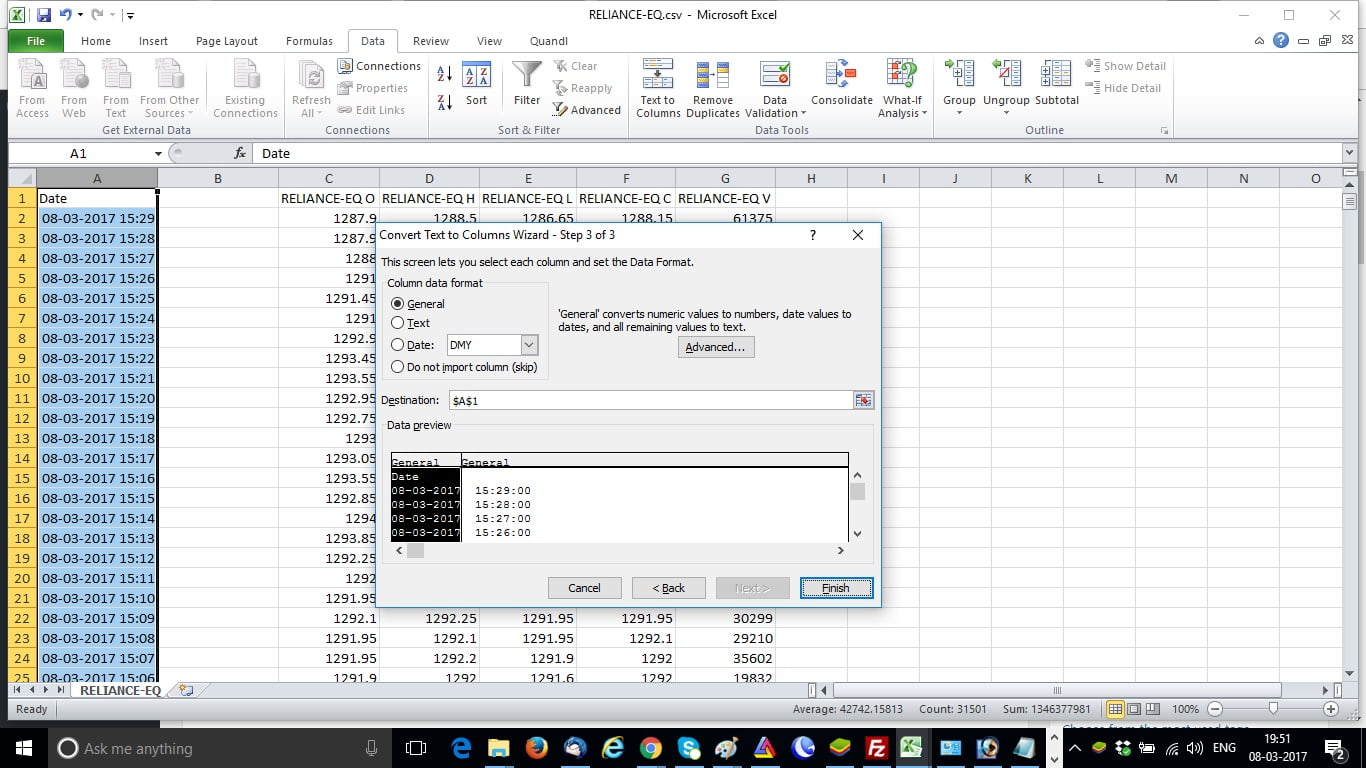
Step 9: Change the column header and format the date column
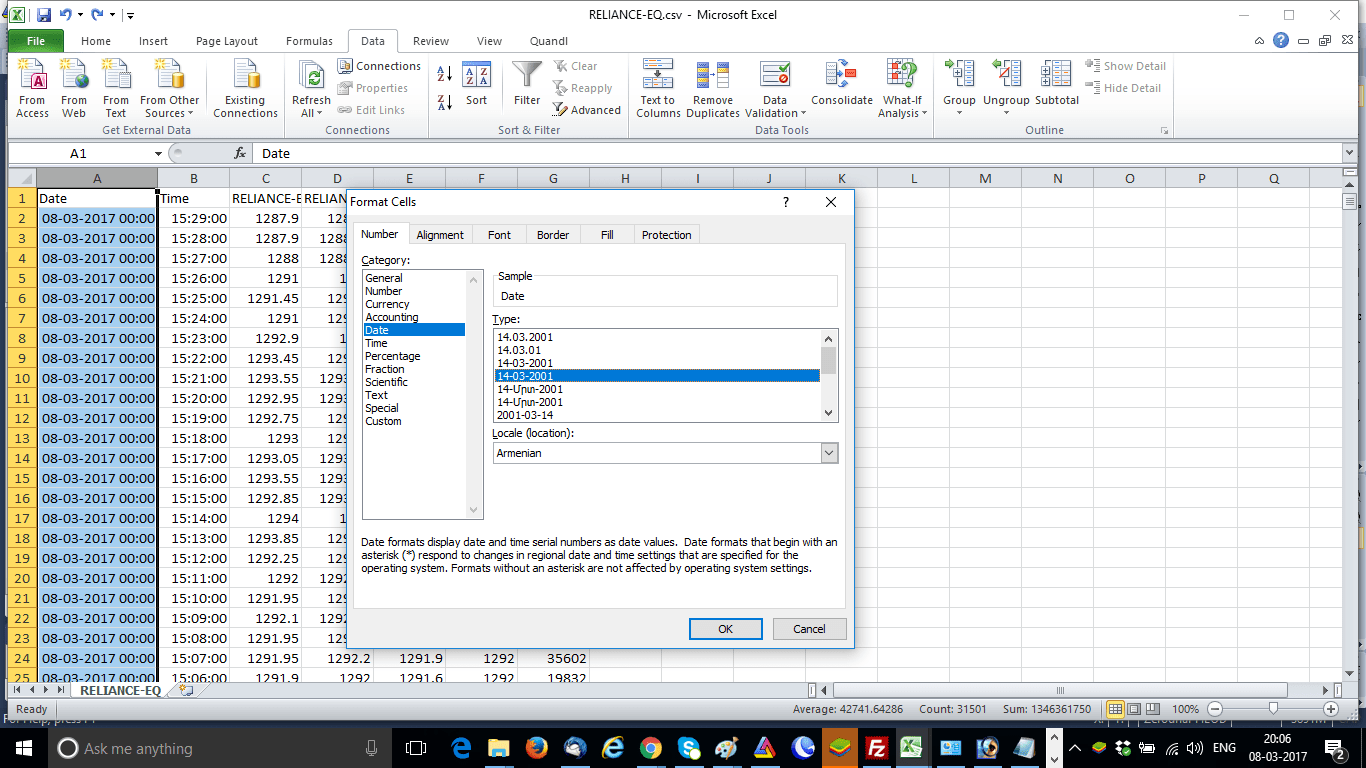
Now, the time column will be separated in column B. Change the column B header at Time. Just one more step in this Excel, select column A, right click –> Format Cells, and change it to date as shown below. This will remove the excess 00:00 type figures after the dates.
Step 10: Save the IEOD data Excel file
Save the Excel file, it will be saved as Reliance-EQ.csv in /Zerodha/Pi/Exported folder. The data export from Zerodha Pi to Excel is complete.
Step 11: Import data to Amibroker
Now it’s time to import this ASCII data from Zerodha Pi to Amibroker. Run Amibroker. Create a new database with a base time interval of 1 minute, data vendor” Zerodha, and symbol as RELIANCE-EQ.
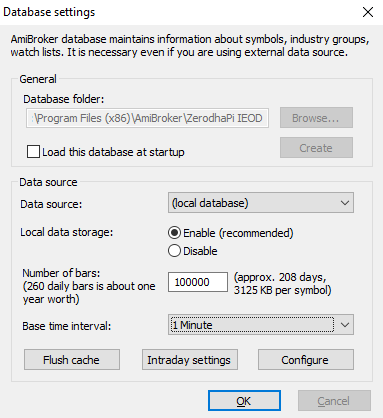
Once you have created the database, click File –> Import ASCII. Browse and select the exported Reliance-EQ.csv file and click Open.
Step 12: Map the fields
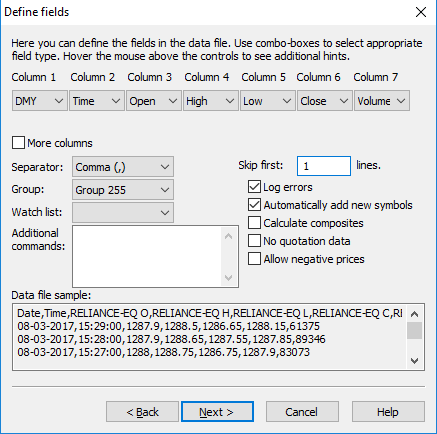
Once you click Open, a new window called ASCII Import Wizard will open. In this window, select “Comma” as a delimiter and click Next. In the next window, map the fields as shown in the image below and click Next.
Step 13: Save ASCII importer settings
In the next window, you can save the ASCII importer settings as shown in the image below, and click Next. In the last window, just click Finish.
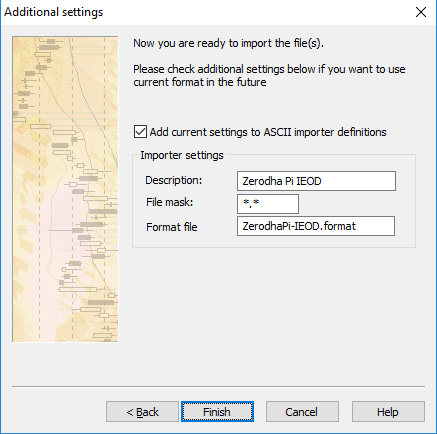
Step 14: Verify the IEOD data we got from Zerodha Pi to Amibroker
Finally, now the data is imported, and you can verify it by clicking View –> Symbol. Select RELIANCE-EQ and check if the data is imported correctly.
Video Tutorial
I have also uploaded the full process in the youtube video.
Part 1: Introduction to Importing IEOD Data
Firstly, watch the first part of the video below:
Part 2: Step-by-Step Guide to Importing IEOD Data
Last but not the least, watch the second part of the video below:
Conclusion
In this post, we have provided a step-by-step guide on how you can import IEOD data from Zerodha Pi to Amibroker. This IEOD data is specifically helpful if you want to backtest in advanced platforms like Amibroker. By following the above steps, you can easily import IEOD data from Zerodha Pi to Amibroker and use it for backtesting. However, after Zerodha has phased out Pi to promote Kite, you need to use other methods like Python to import this IEOD data.


Time here is in 24 hour format..where data imported from pi is in a.m and p.m..not able to import..do we need to format time columa also
Bijoy you can change the time format from 24 hours to 12 hours from your windows time and date settings. Rest you follow my other steps. It should work. If not let me know.
Hey Indrajit
Thanks buddy. so nice of you.
One quick point – everyday i have to do the settings in excel sheet? Is there any way to save the settings and all charts in PI?
Pl help
Saee, no gain without pain. In fact, you can save only the Amibroker format once for regular use. The excel part you need to do buddy manually every day. This much pain we need to take in order to avoid the costly Amibroker real time data costs. 🙁
Use Comma or Space in Separator ( $SEPARATOR “, ” ) while Amibroker Import Wizard to skip everyday Excel setting for Date & Time separating.
Dear Inderjeet, I really appreaicte your support on this platform. I have been downloaded Nifty50MW as Link to Excel fro Zerodha Pi. But all data appear as #NA. Could you help me or share details with me on my email. Thanks for your valuable suppport .
Sombir, you can follow this video.
Is it possible to extract data for a group of stocks at a time like Nifty 50, Nifty Auto, Nifty FMCG etc ?
Venkatesh, for that you need to work very hard. You need to do that one by one. Why not subscribing to a data vendor?
Hello Indrajit
First of all fantastic work for guiding naive users to this technique. I have followed all your steps carefully and got some candles for stock, however the time that is displayed in amibroker is not correct. The last candle time, I am getting as 12.59.59 PM. I am using 15 mins chart setup.
I have checked my windows time, it is 12 hours only.
Could you please help to resolve this?
Check your database settings. Check in other time frames, like 1-min, 5-min etc. Make sure you try this after the market hours so that you get candles up to 03:30 PM.
hi Indrajit Sir i tried this method and it worked but unfortunately i have some past excel data which are saved in 12HR time format. I need to import them and problem comes when i can’t separate AM/PM.Help me in this
Mayank change the time format in your windows date and time settings. Any past data will be automatically converted. Logically, you should not face any issue on that.