
Introduction
As the popularity of the Zerodha Pi platform grows, Omnesys Nest Trader has lost some of its market shares. However, many traders still prefer Nest Trader, and brokers like Samco, SASOnline, Master Capital, BMA, etc. still provide it to their clients. Despite its popularity, there is a lack of information about Omnesys Nest Trader chart settings on the internet. In this article, we will provide a step-by-step guide on how to open a chart in the Nest Trader platform.
Importance of Omnesys Nest Trader Chart Settings
Omnesys Nest Trader chart settings are essential to navigate through the confusing charting interface of Nest Trader. With proper chart settings, traders can view charts with ease and better decision-making.
Overview of the Nest Trader Platform
Nest Trader is a tool for trading that is made for experienced traders. It offers advanced charting features, customizable watchlists, and a range of other tools that help traders to analyze and trade the markets.
Step-by-Step Guide to Omnesys Nest Trader Chart Settings
Let’s go through a step-by-step guide on how we can open a chart in the Nest Trader platform.
Adding Scrips to Market Watch
The first step is to log in to Nest Trader and add your scrips to your market watch.
Opening a Chart
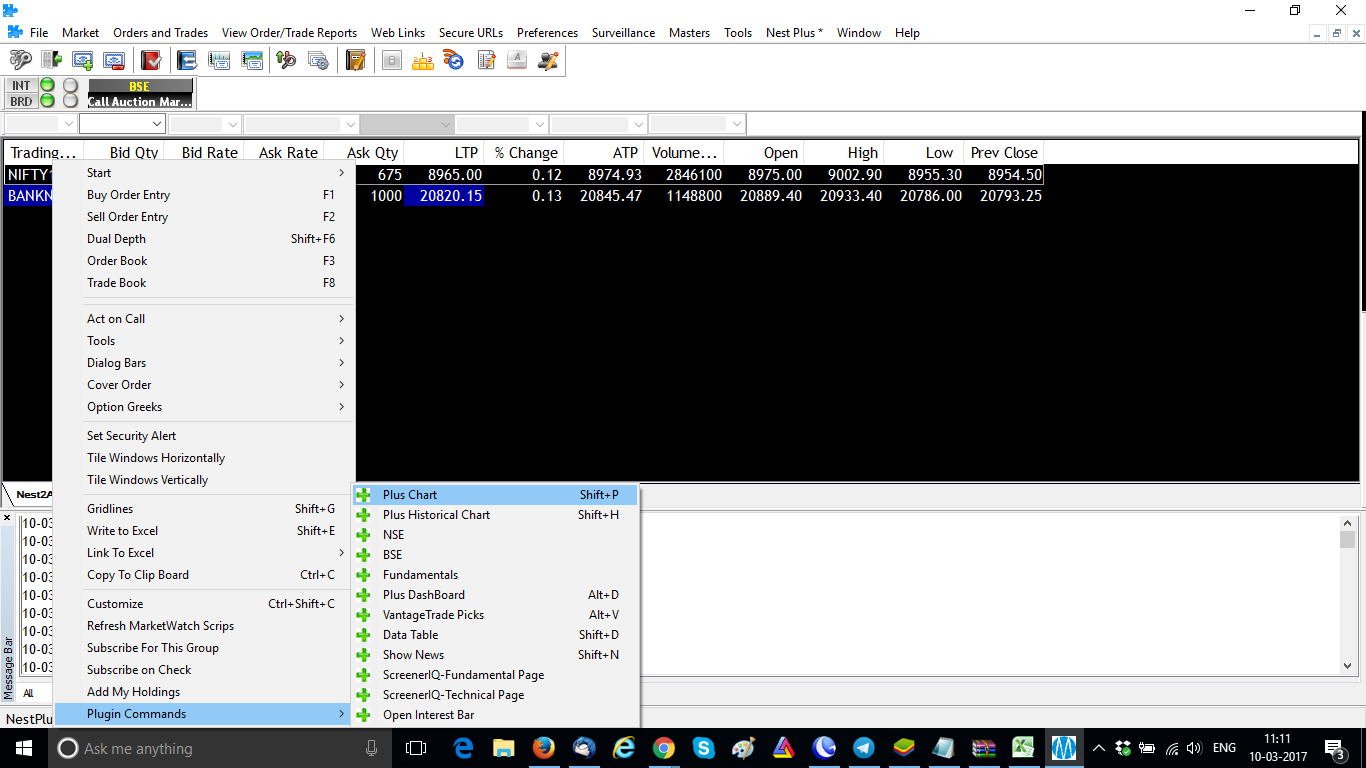
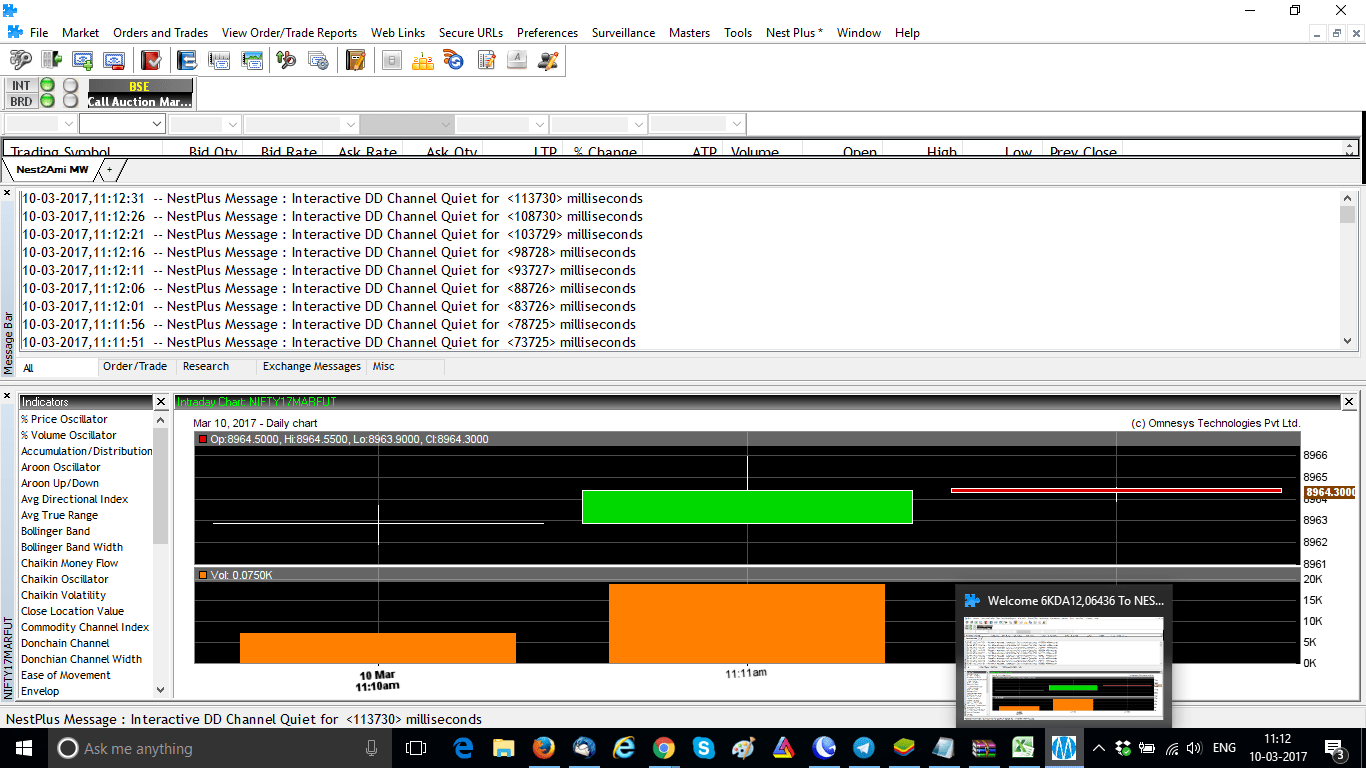
Once you have added your scrips to your market watch, right-click on the script and select Plugin Commands –> Plus Chart. This will open up the chart in Nest Trader as shown in the image below.





Zooming In and Out of the Chart
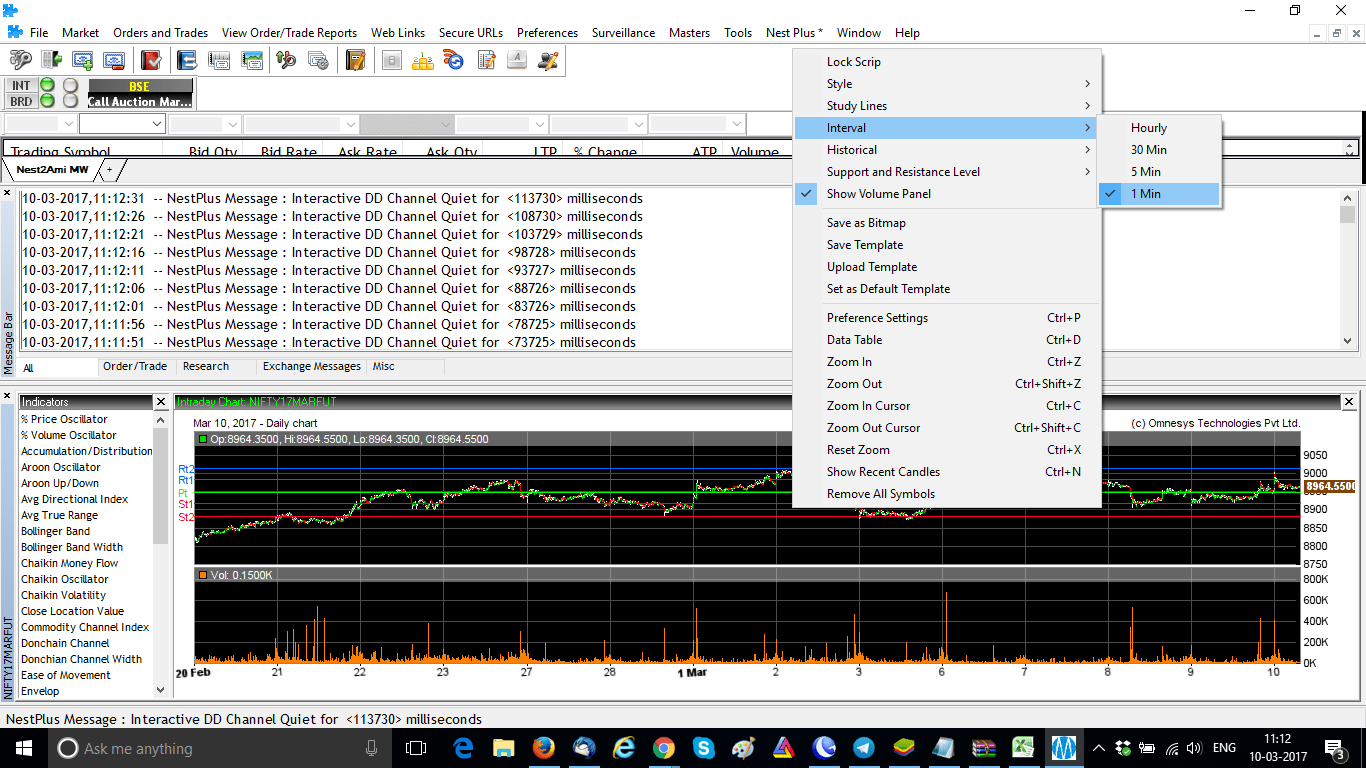
The chart will be opened with big candles, making it difficult to view. Hence, zoom the chart using Right Click –> Zoom In or pressing Ctrl+Z on your keyboard. You can zoom out by right-clicking and Zoom Out or pressing Ctrl+Shift+Z on your keyboard.

Setting the Desired Time Frame
Once you have zoomed in on the chart, set your desired time frame by Right Click –>Interval. You can choose between hourly, 30-minute, 5-minute, and 1-minute charts.
Adding Indicators
Adding indicators is crucial to make informed trading decisions. You can add various indicators in Nest Trader.
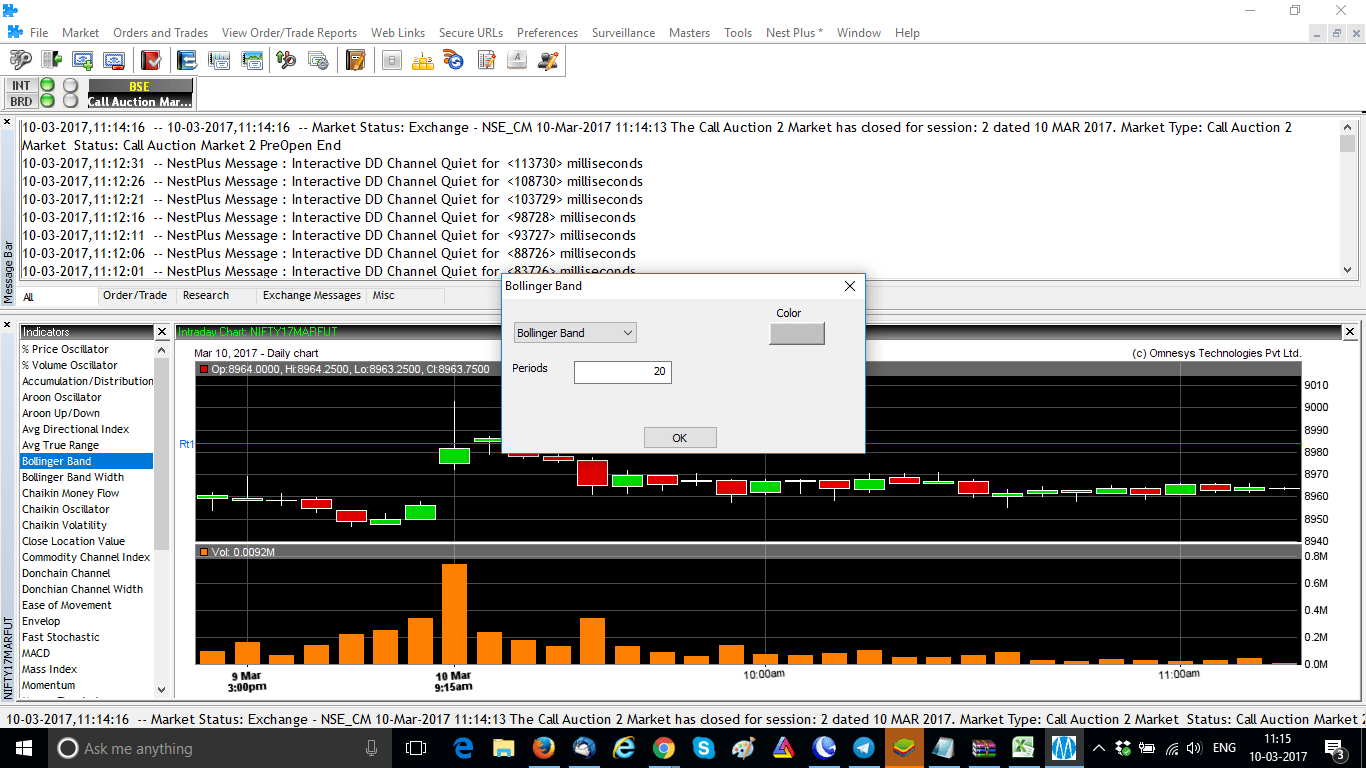
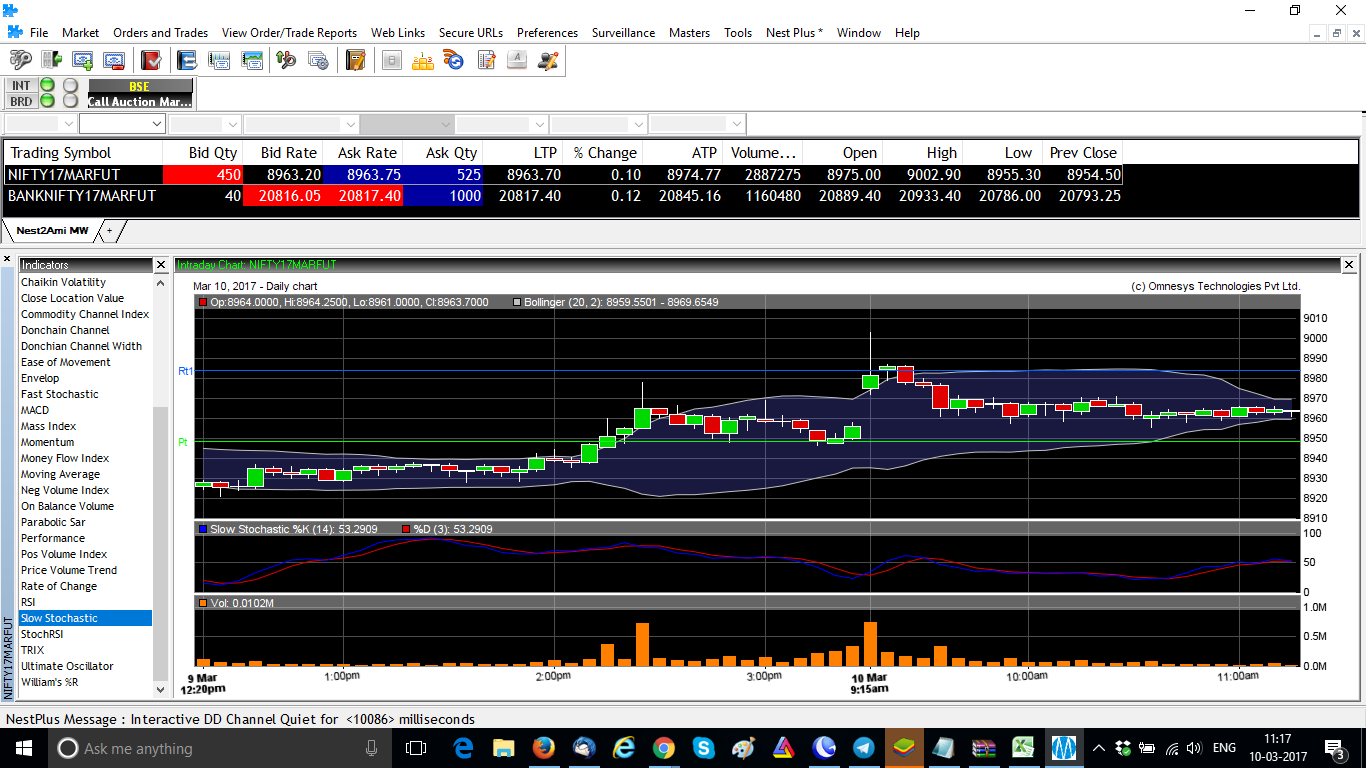
We have added Bollinger Bands and Stochastics in this guide.
Saving Your Chart Template
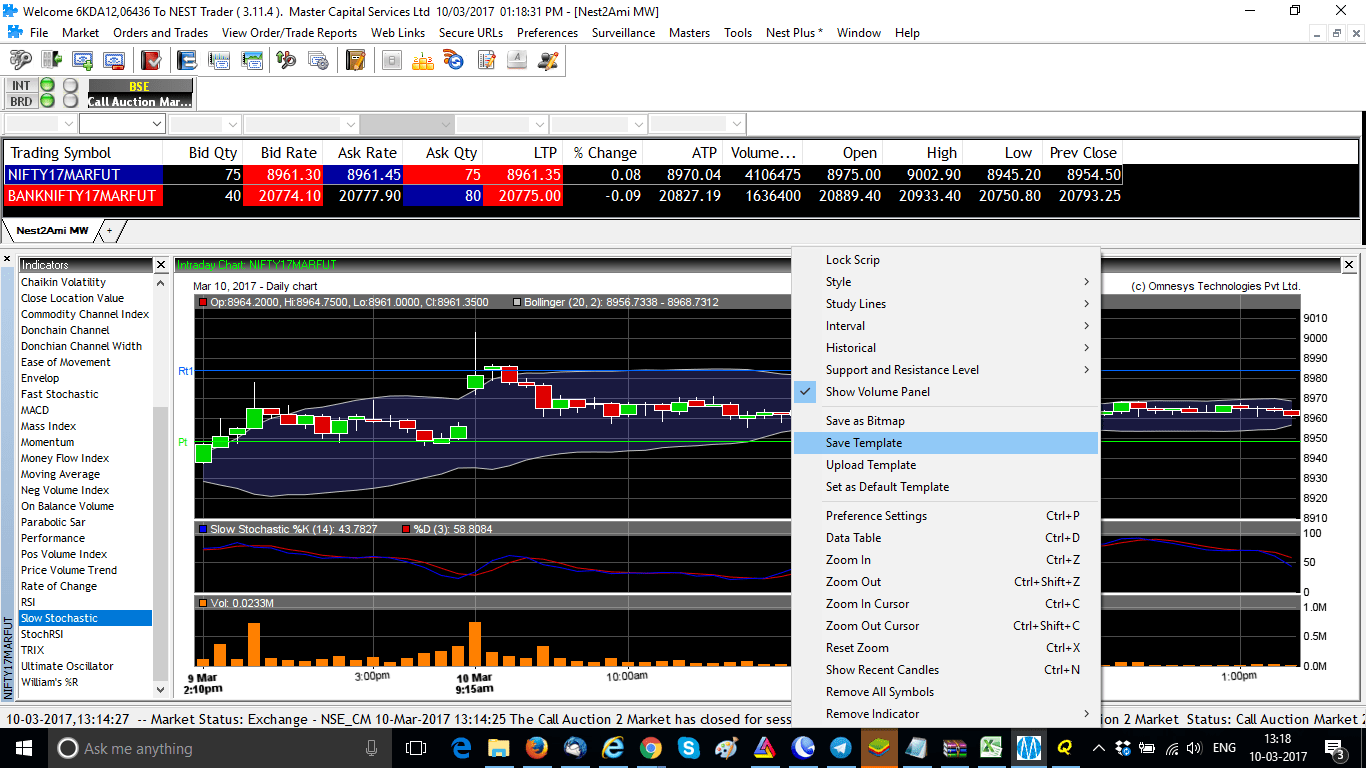
After adding indicators, you can save your chart template by right-clicking and selecting Save Template. Saving chart templates can save time and ensure consistency while analyzing multiple scrips.
Limitations of Nest Trader Chart
Nest Trader charting has its limitations, and traders must be aware of them. You cannot open charts of more than one scrip, and only one chart can be opened at a time.
Inability to Open Multiple Charts
Nest Trader does not allow traders to use the power of opening multi-charts simultaneously. Hence, traders cannot compare charts of different scrips at the same time.
Limitations on Opening Charts for Multiple Scrips
Traders can only open charts for one scrip at a time, making it challenging to track and analyze multiple scrips.
FAQs on Omnesys Nest Trader Chart Settings
To view charts in Nest Trader, you need to first log in to the platform and add your desired scrips to your market watch. Then, right-click on the script and select Plugin Commands –> Plus Chart. This will open up the chart in Nest Trader.
The best chart style for trading depends on your personal preference and trading strategy. Some traders prefer candlestick charts while others prefer bar charts. It is recommended to experiment with different chart styles and find the one that works best for you.
To get indices in Nest Trader, you need to add them to your market watch. You can do this by selecting Market Watch from the menu and then selecting Indices. From there, you can add the indices you want to your watchlist.
To check your Nest Trader margin, you need to log in to the platform and go to the Account tab. From there, select the Margins option and you will be able to view your margin details. It is important to regularly monitor your margin to ensure that you have enough funds to cover your trades.
Conclusion
Omnesys Nest Trader chart settings can help traders to make analyzing specific stocks with ease. Despite its limitations, Nest Trader is still a popular trading platform among many traders. However, we recommend switching to Zerodha Kite or TradingView for a better charting experience with more advanced features and flexibility.