The Bengaluru-based broking firm started its journey in the year 2010. Just in a short time span of time, it has reached the No 1 rank in India. The company provides services for most of the segments like equity, commodity, derivative market, etc. Previously, we’ve covered all the topics of Zerodha, its terminals, features, brokerage, margin, Apps, etc. Today’s topic is the Zerodha console. You may refer to it as Zerodha Backoffice too, Console is a modified version of Zerodha Q Backoffice.
Zerodha Console Features
So, the console is the Zerodha back-office for the Zerodha account. If you have an account with Zerodha, you can access the Zerodha Console with the Kite platform. Simply, it is the central dashboard where:
- You can place withdrawal requests
- Here, you can keep track-record of credits and debits in your trading account via your account statement.
- You may view and track your portfolio of positions, stocks as well as mutual funds.
- Also, you can access multiple reports like your trade book, Tax P&L, etc.
- Download contract notes and margin statements facilities are available.
- You can access a host of analytics tools such as trade book heatmap and Profit-Loss heatmap, etc.
How to Login at Zerodha Console?
To login into the Zerodha console, there are two particular ways available by which you can access the new back office of Zerodha.
The first way is to directly make an entry to your back office from the Zerodha Kite. Now, on the up-right corner of your account, you can see your client-id, from there you can go to your back office.
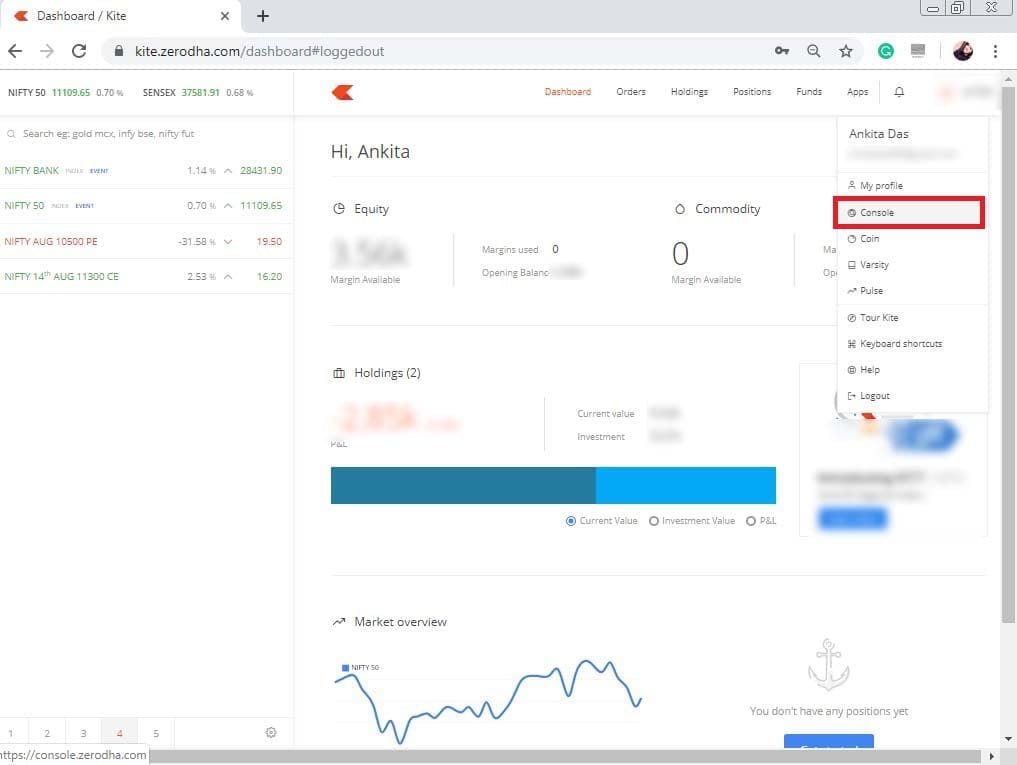
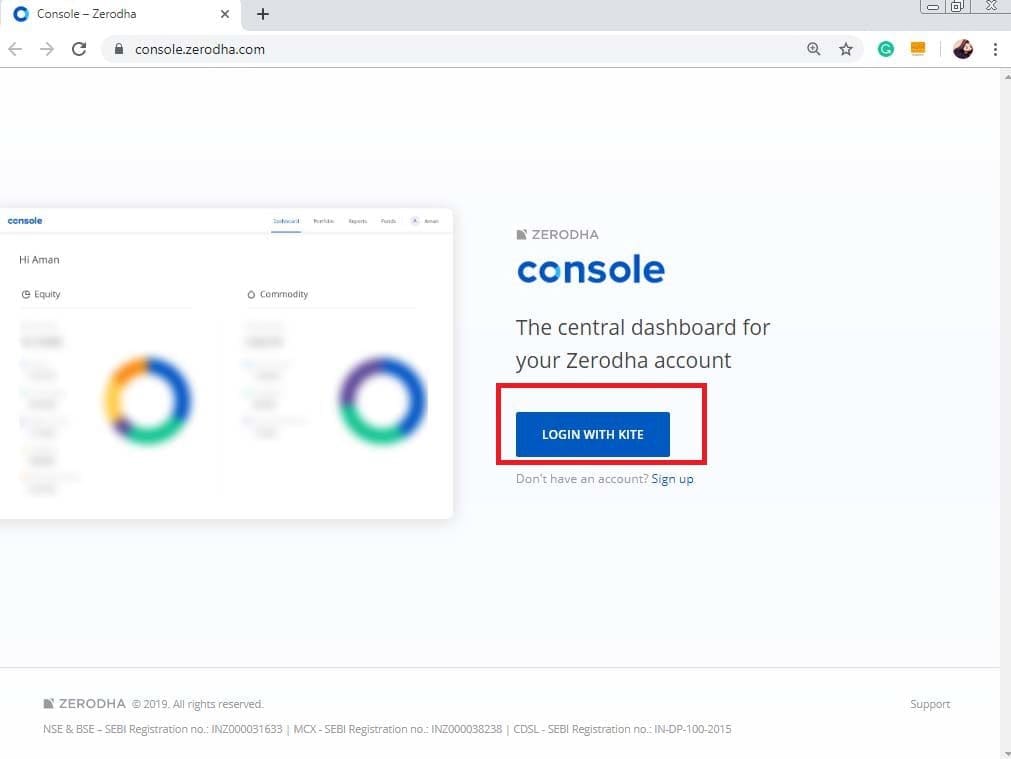
- The second way is to directly log in to the Console, Backoffice Zerodha. For that, you have to go to console.zerodha.com. From there, you can directly access your account status by logging in to Kite.
Zerodha Console Usage Guide
After opening your back office, you will get different tools such as Home, Funds, Portfolio, Profile, etc. Let’s have a quick look at the detailed descriptions of the mentioned tools.
Home
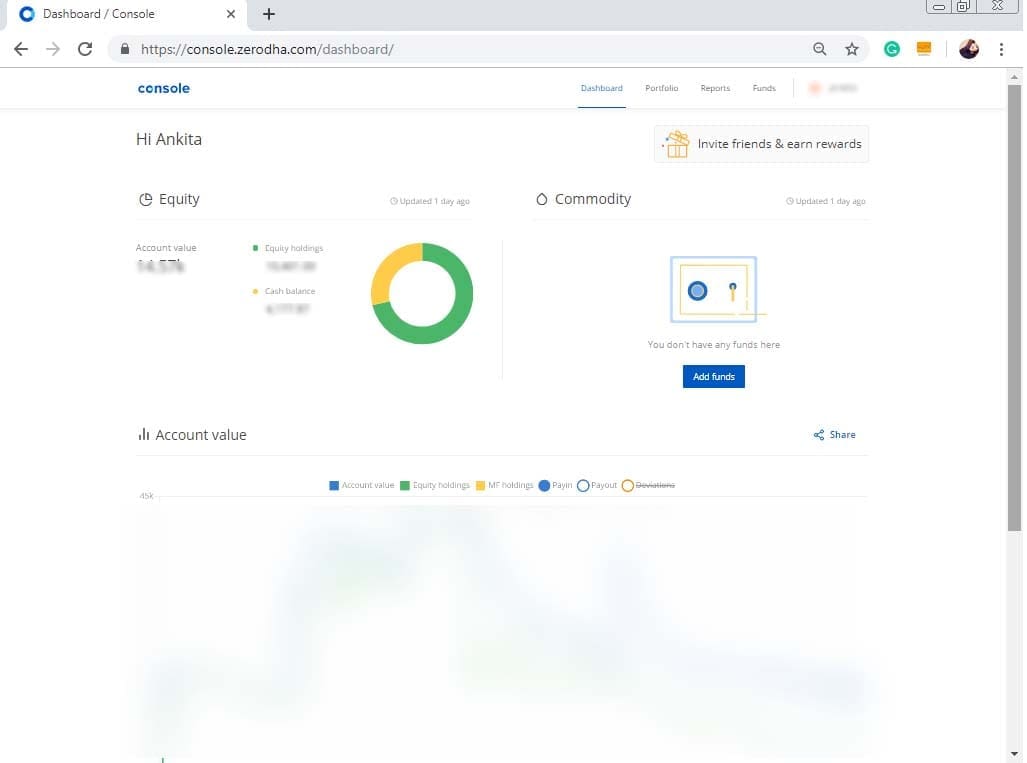
In the home section, you can go through your equity-commodity account value along with details. Besides this, it shows the available balance of the account. You may click directly on the add funds option to add funds to your account. For understanding purposes an image is attached below:
Refer and Earn Rewards
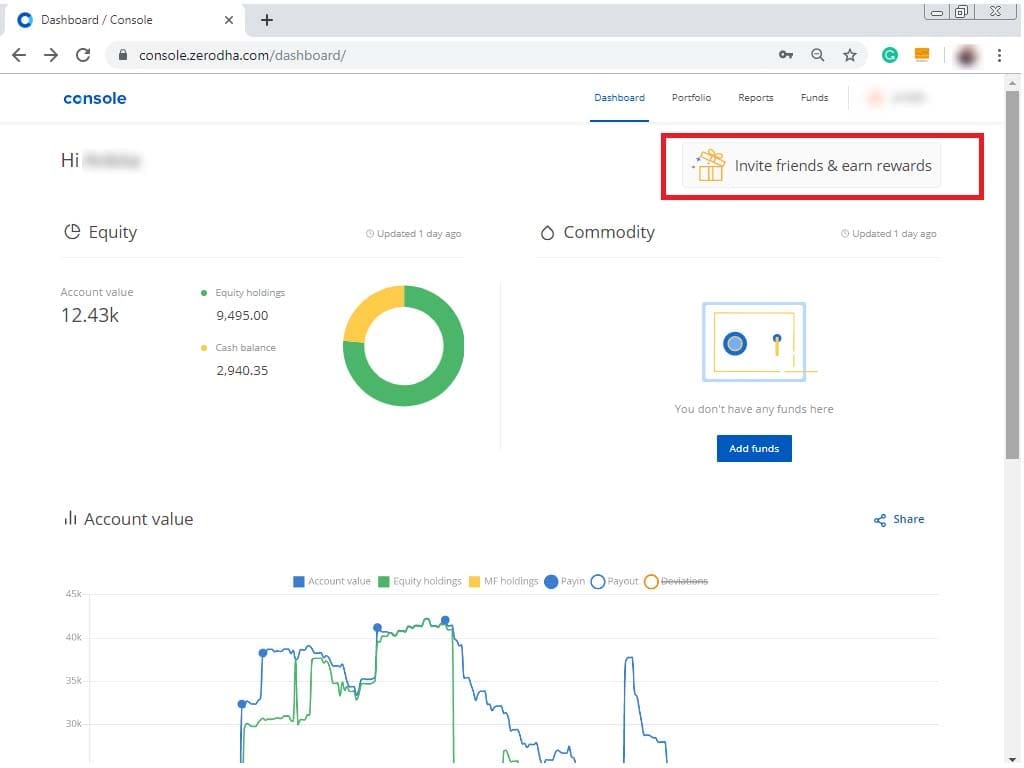
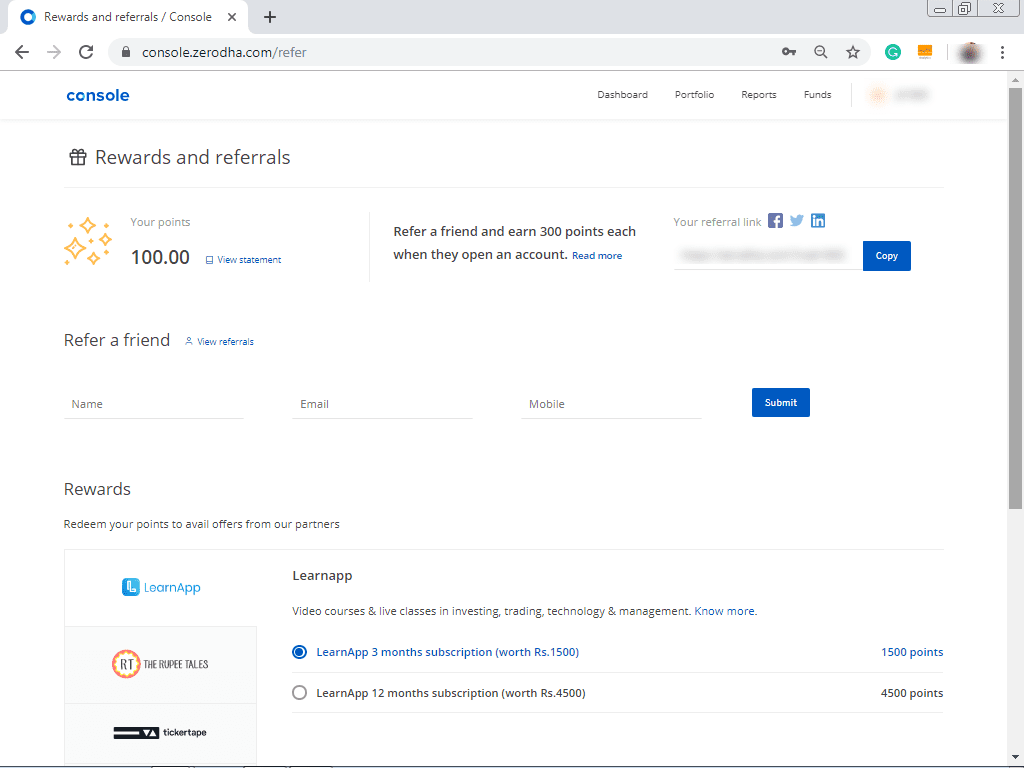
You can refer someone to earn 300 reward points from Zerodha after opening the account. You can also use these reward points to subscribe to Zerodha’s paid products like Streak, Sensibull, Smallcase LearnApp, etc. For a detailed view, check our previous post on Referral Benefits in Zerodha
From the Rewards and Referrals page on Console, You can easily refer to. Just enter the Name, Email ID and mobile number of the person you are referring and Zerodha will contact and assist the person with account opening.
Refer and Earn Money
Imagine, if the rewards become double, sounds odd?? It can be true with StockManiacs. We Stockmaniacs (Marketing Partner of Zerodha) are giving a special beneficial offer. Here, you can get access to our Hot Tips mobile application and get computerised algo calls. You can earn Rewards + Money even when you are sleeping.
So, if you have family and friends who want to open an account in Zerodha then You Are Just a Single Step Away From the Referral Rewards. Just refer the person below.
Here, one thing must be noted. After opening the account, you will get 300 points plus the Hot Tips app from us. But if you refer directly to Zerodha you won’t get a referral benefit from us, only get rewards points from Zerodha. So, refer to the above-given links and grab both of the offers.
Portfolio
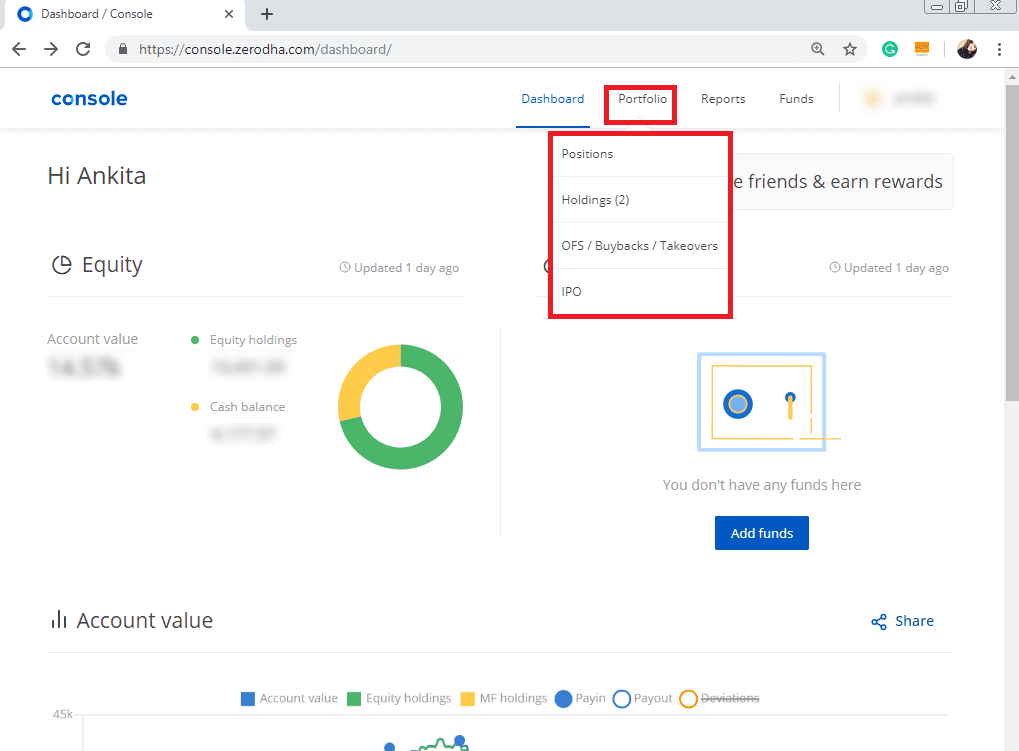
Portfolio option includes open position, holdings, OFS (Offer for Sale), IPO, etc. From here, you can check out the entire state of your account including current positions and holdings.




Position
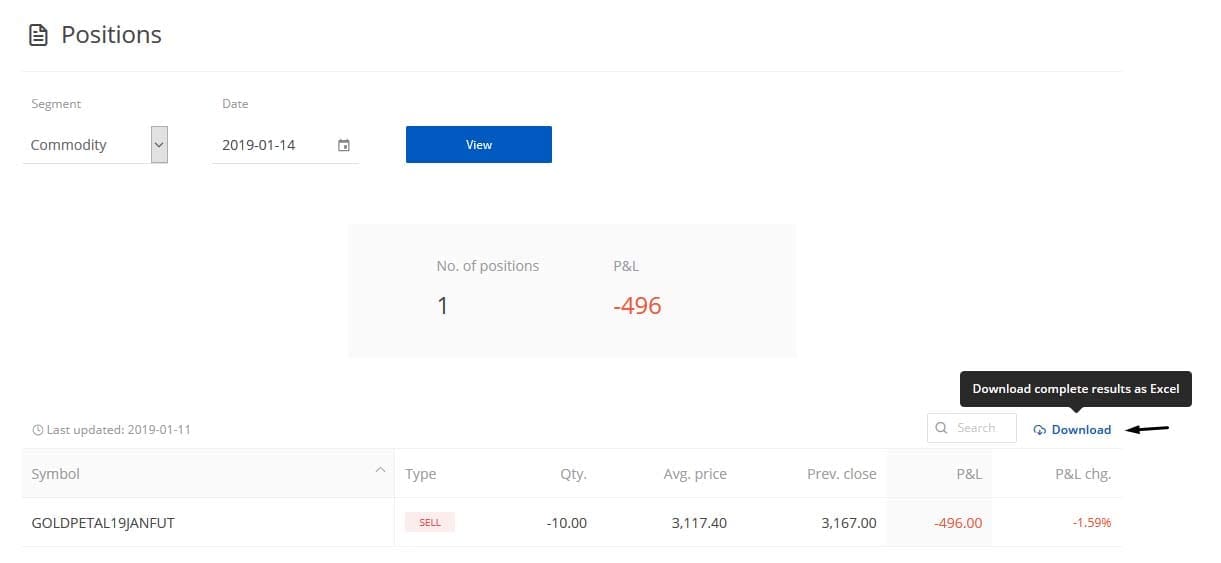
Here, you can see both your current open positions and historical positions on Once you do, you’ll be able to select the segment in which you want to see your open positions. Here, in the position section, you can see both your current open positions and historical positions from here. The current position shows the present statement of the account while the historical position presents the previous data of your statement.
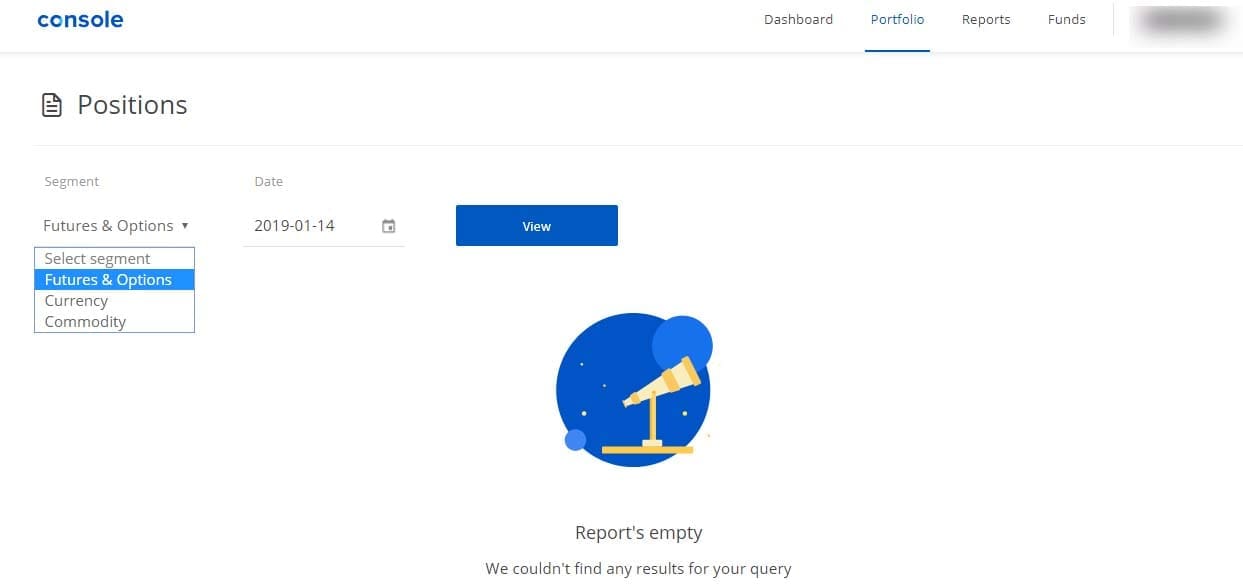
If you want to see your positions as on a particular date, select the respective segment like Futures & Options, Currency or Commodity. Then you can choose the date and click on ‘View’. You can also download the list of your positions as an Excel file.
Holdings
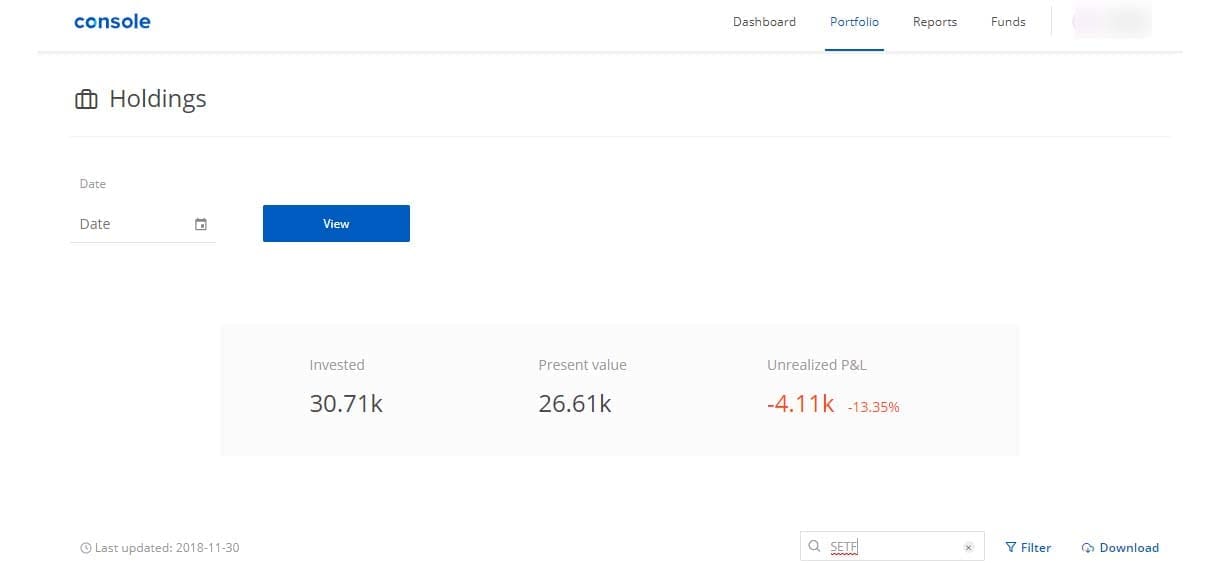
You can check all the shares you’ve purchased and are holding on Console by clicking on ‘Portfolio’ and selecting ‘Holdings’ You will be able to see the list of all stocks you hold on this page. If you want to check stocks you held on a specific date, this can be done by selecting a date. You can also search for particular stocks, and hold by typing the script name in the search bar.
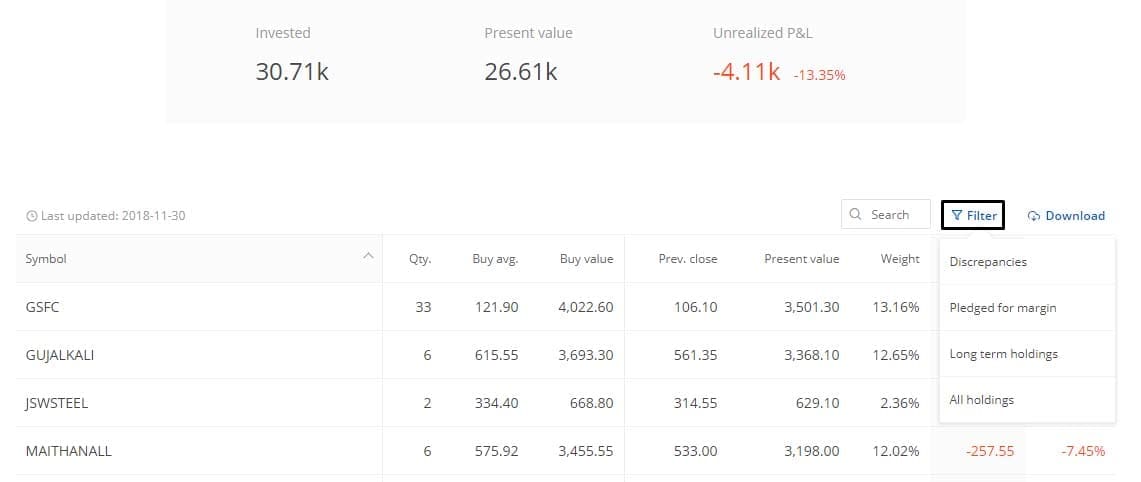
One can also filter one’s holdings by long-term (holding period > 1 year), pledged and discrepant holdings.
OFS/IPO/Buybacks
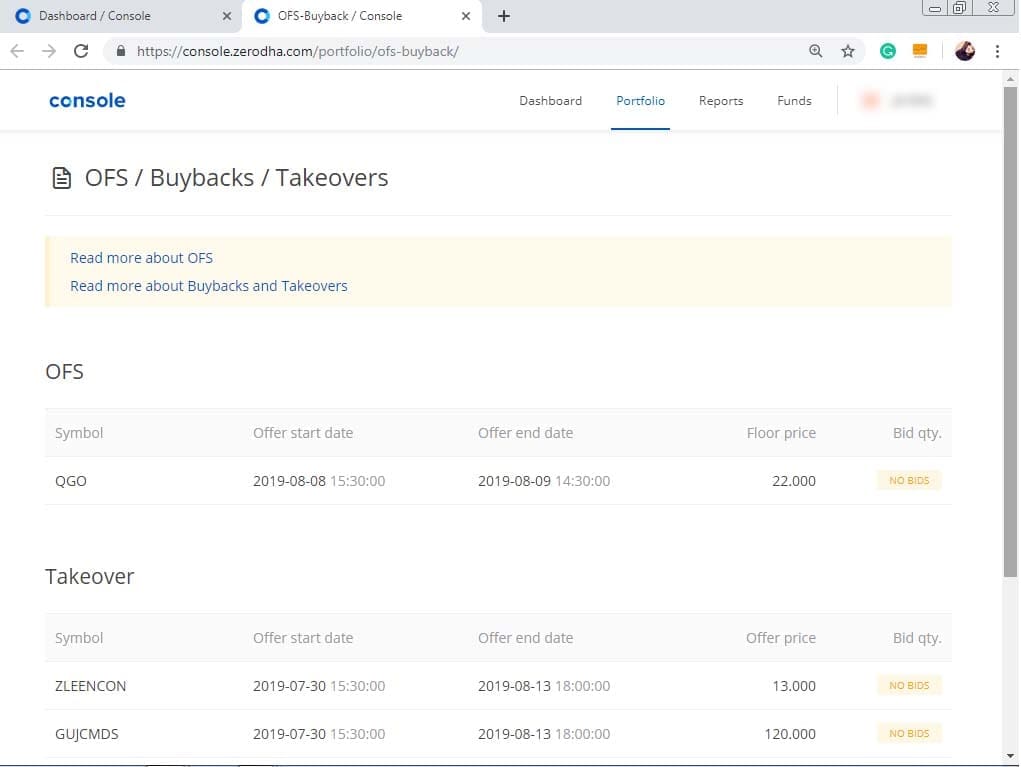
You also get updated information from the Zerodha console regarding OFS or offer for sale, IPO or Initial public offerings, Buybacks, etc. Zerodha provides investment facilities on these securities.
Reports
The report section can lead you to different significant parts of your account. This includes P&L or Profit and Loss Statement, Tradebook, Tax P&L (profit and loss), Contract note, Margin statement or MS, AGS or Annual Global Statement. The report section generally displays the overall profit and loss statement of the account. It provides a clear statement about annual and periodical profit loss statement details. You can download the report from there.
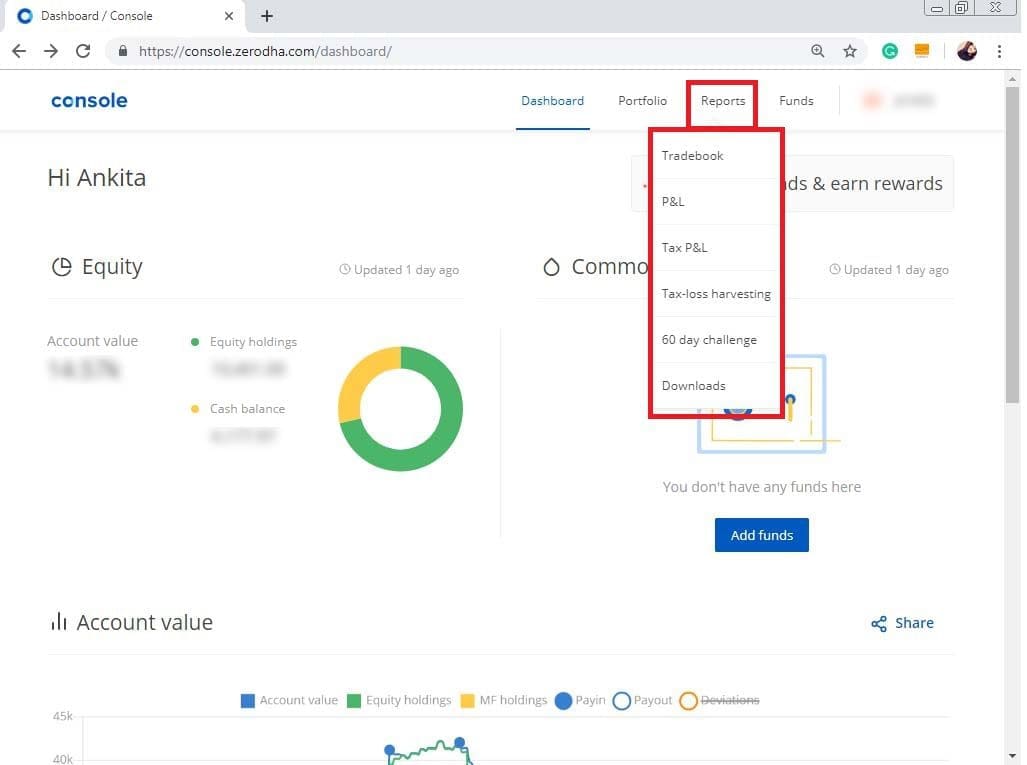
Tradebook
Just click on ‘Reports’ and select ‘Tradebook’. You will be able to see your trades as well as the trade book heat map. Now, select the specific segment and the date range in which you want to view your trades. As you can see ‘View’ “option is there and you can also select the dates & segments to see the trades you’ve taken.
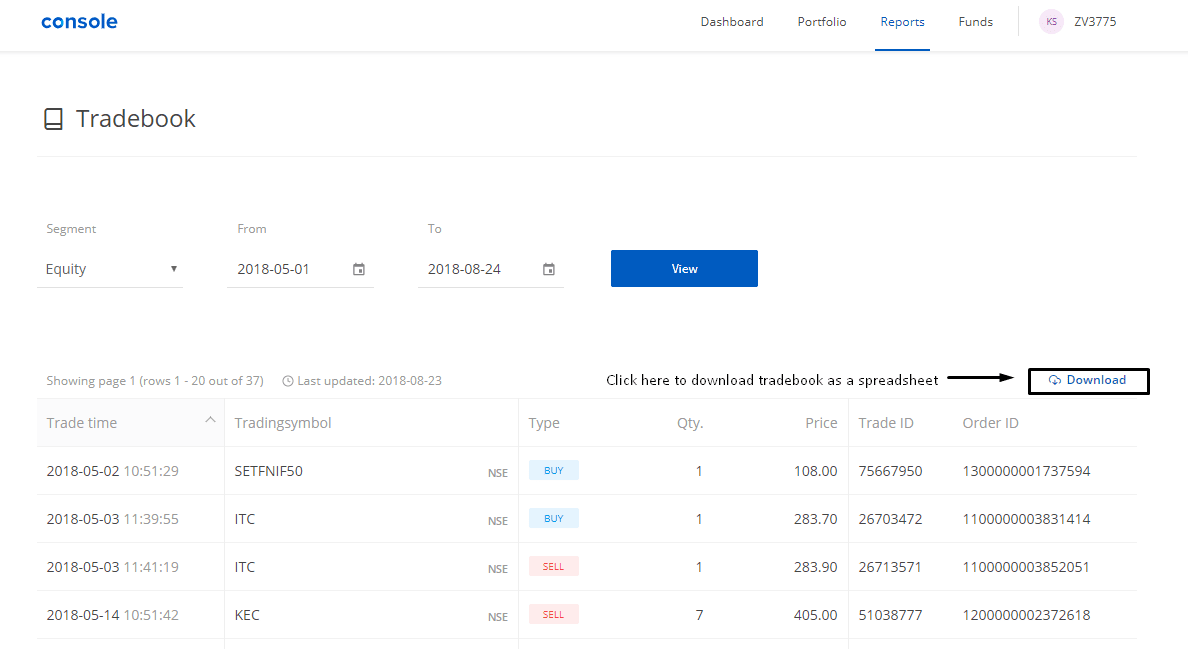
After your trade book opens up, click on ‘download’ if you download it as a spreadsheet.
Profit & Loss (P&L)
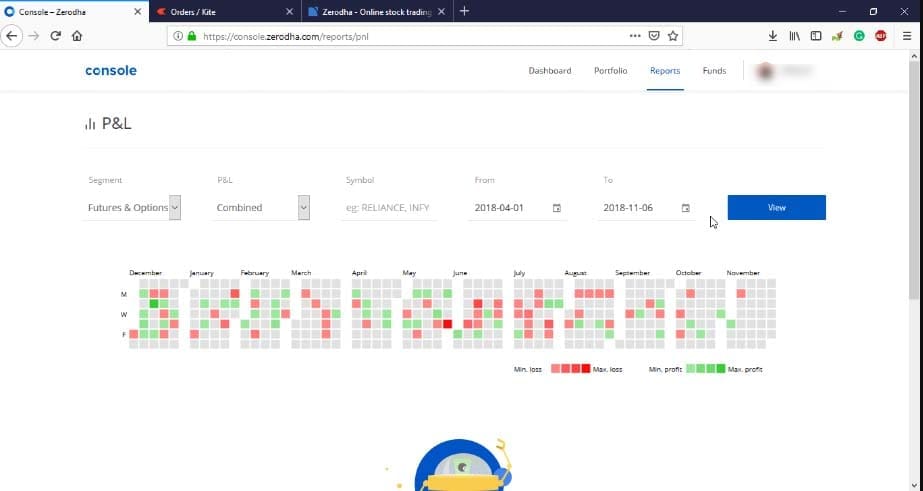
See the pic below, there you can see the P&L heat map. This is a graphical representation of your profit-loss reports. The colour-coding method displays your gross daily realized profit or loss.
Here, the green colour is for the profit and the red is for the loss. The lighter the colour, the smaller the profit or losses. Darker colour implies larger profits or losses.
One more thing is, through this method, you can able to get a comprehensive overview of the selected period as well as throughout the year.
Tax P&L
Under the section ‘Reports’ choose the ‘Tax P&L’ option. Here, select the Financial year and the financial Quarter for which you want to see the tax P&L report and then click on ‘View’. You may choose the section for which you need the report, by clicking on the particular tabs.
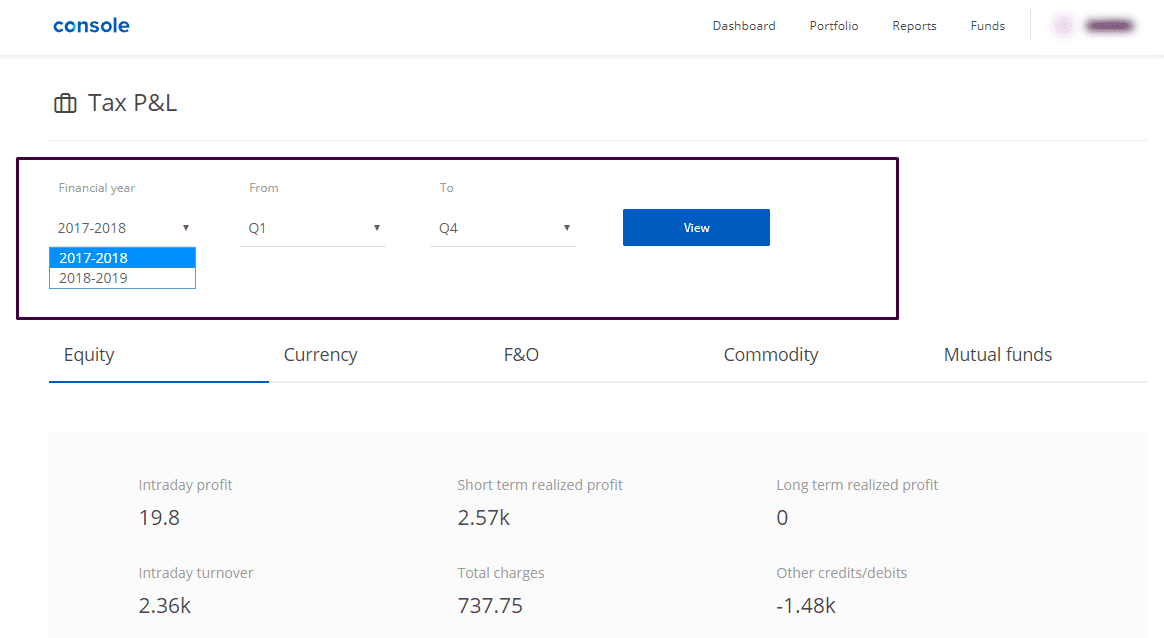
After scrolling down the page, one can also see the option where he can ‘Download’ his Tax P&L report for all segments as a spreadsheet.

Tax-loss Harvesting Report
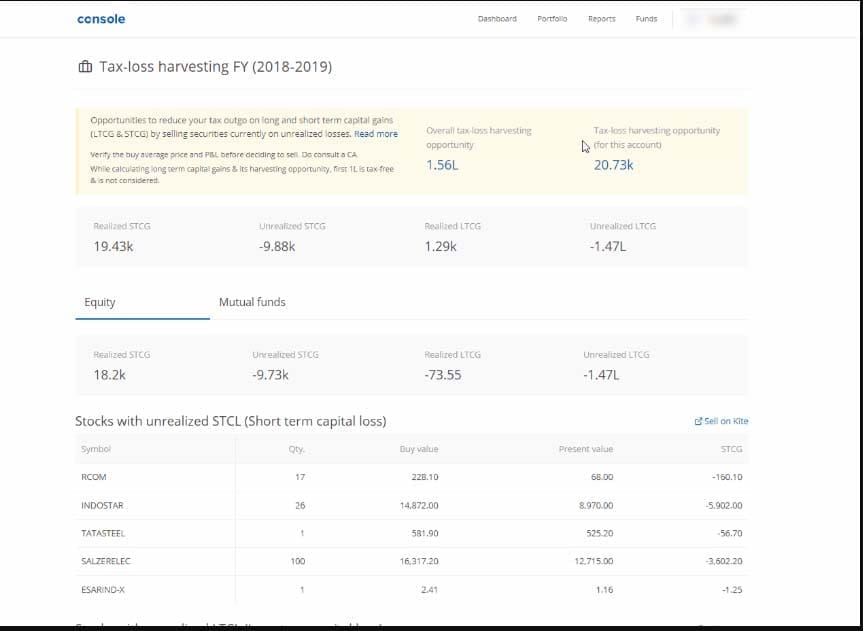
On the Console, Zerodha has a tax loss harvesting report. This lets you see if there is a tax loss harvesting opportunity in the account. It also lists out all holdings along with unrealized losses for one to sell and reduce one’s realized capital gains and hence one’s taxes for this financial year. Once sold, by the end of the day the tax-loss harvesting report will get updated.
60 Day Challenge
The 60-Day Challenge is a unique initiative by Zerodha to encourage their traders to be more focused on their trading.
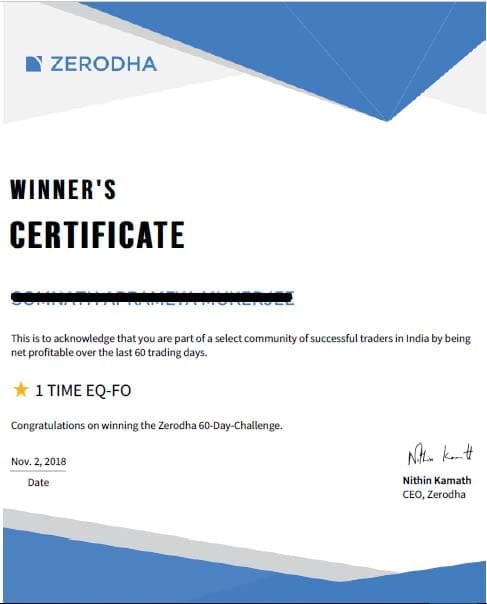
The main purpose of the challenge is to trade profitably over 60 trading days. Once you start, over the next 60 trading days if you are Net profitable then you will be declared as a winner and certified as a profitable trader. By the term “net profitable” we mean profits after paying all brokerage, taxes and other mentioned charges.
Downloads
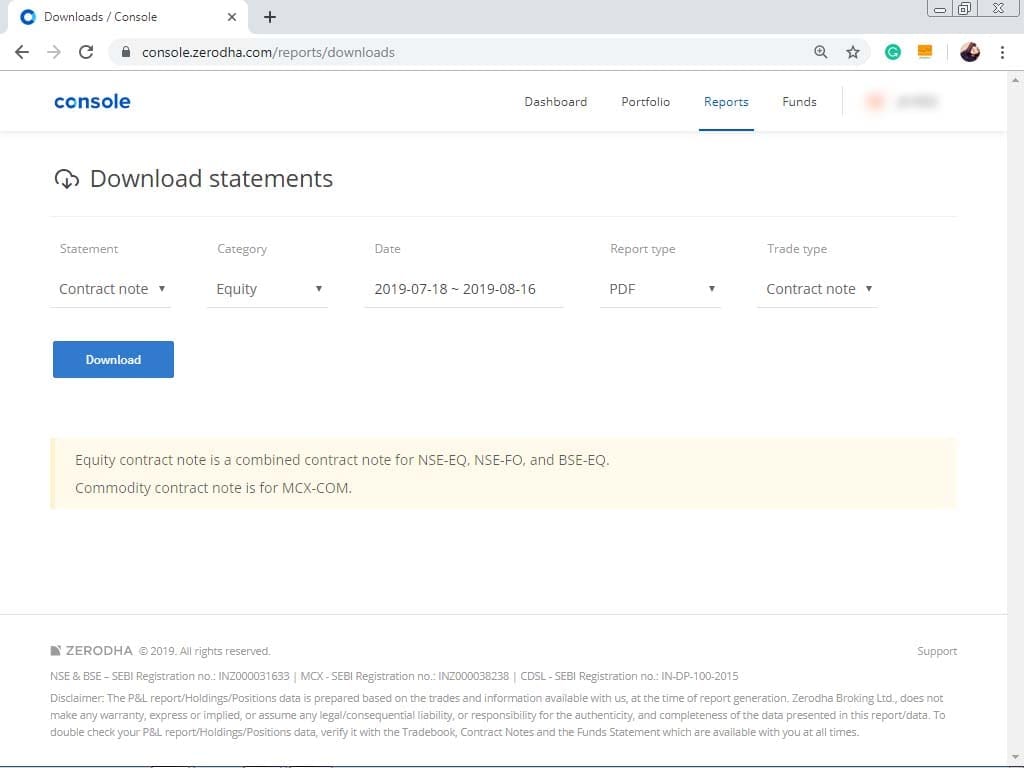
From there, you can download your financial statement in the form of PDF, XML, or XLSX. Trade types can be Contract notes, BuyBack, Takeovers, OFS, Delisting, etc. The financial statement can be in the form of a Contract Note, Margin statement and Annual Global statement. It covers all the segments here.
Funds
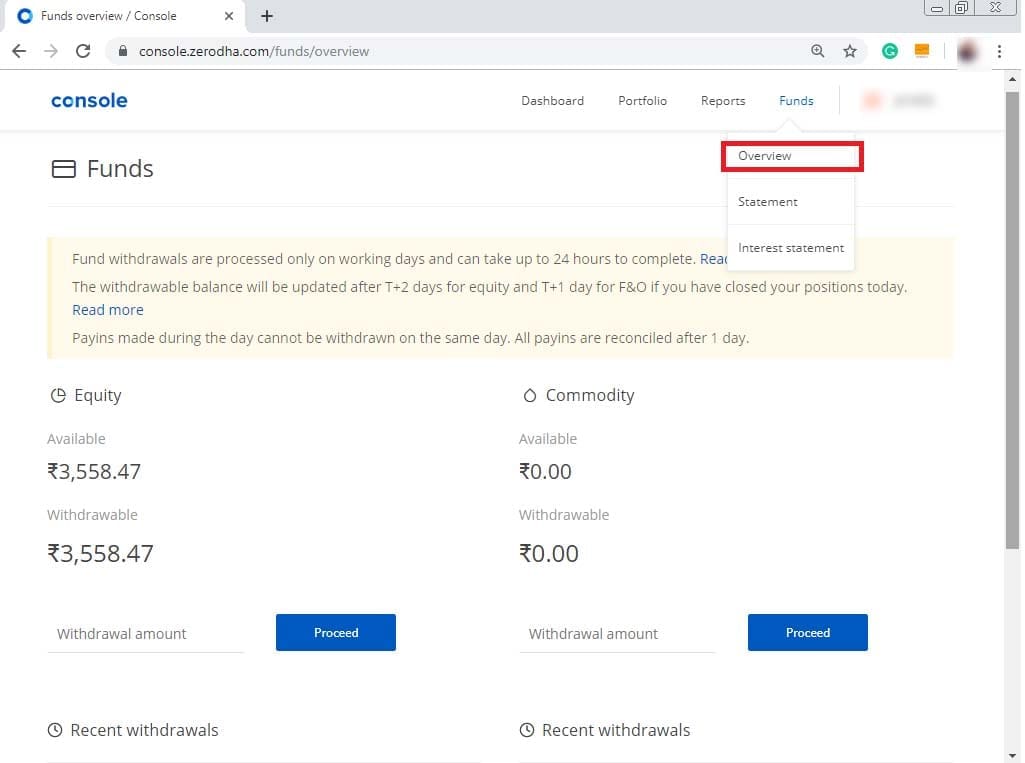
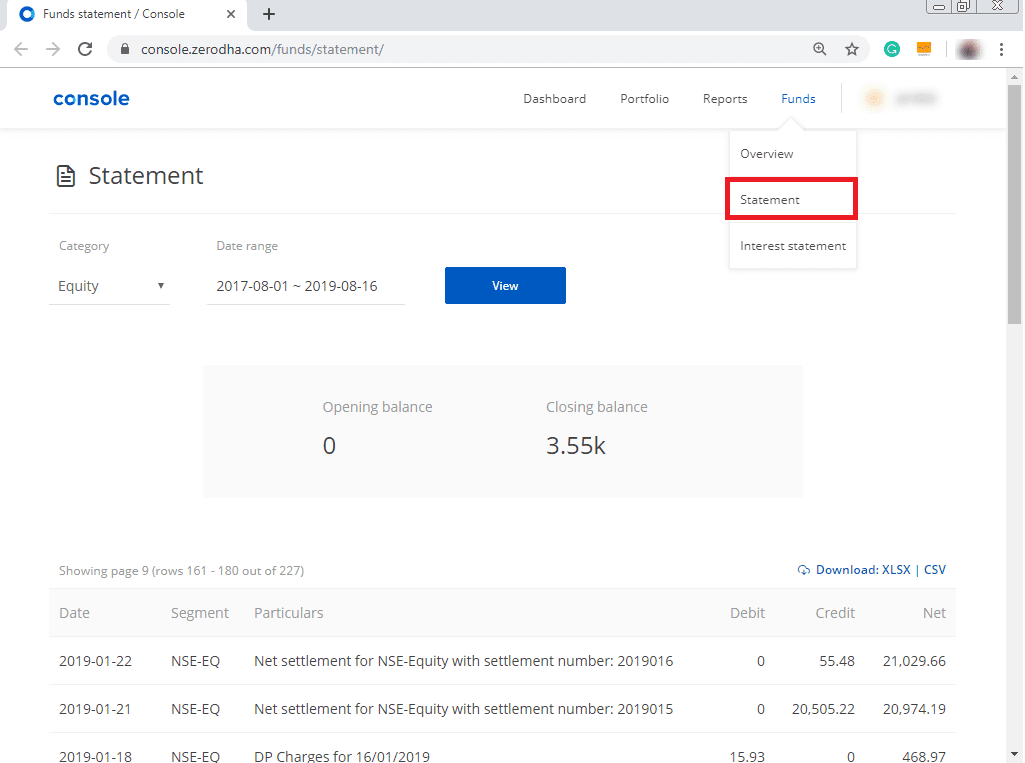
This is one of the most vital sections of the console. The Fund segment consists of every detail of your fund transfer. It includes three subsections, overview, statement, and interest statement.
In overview, you will get an entire calculative overview of your account. The amount of balance, withdrawal availability everything will be displayed in the section.
Next, come to the statement division. There, by putting the category, and date range, you will get the whole credit and debit and net transferred and withdrawal amount of your account.
The last section is the Interest statement section. The only limitation is here, you can able to see max 30 days interest statement.
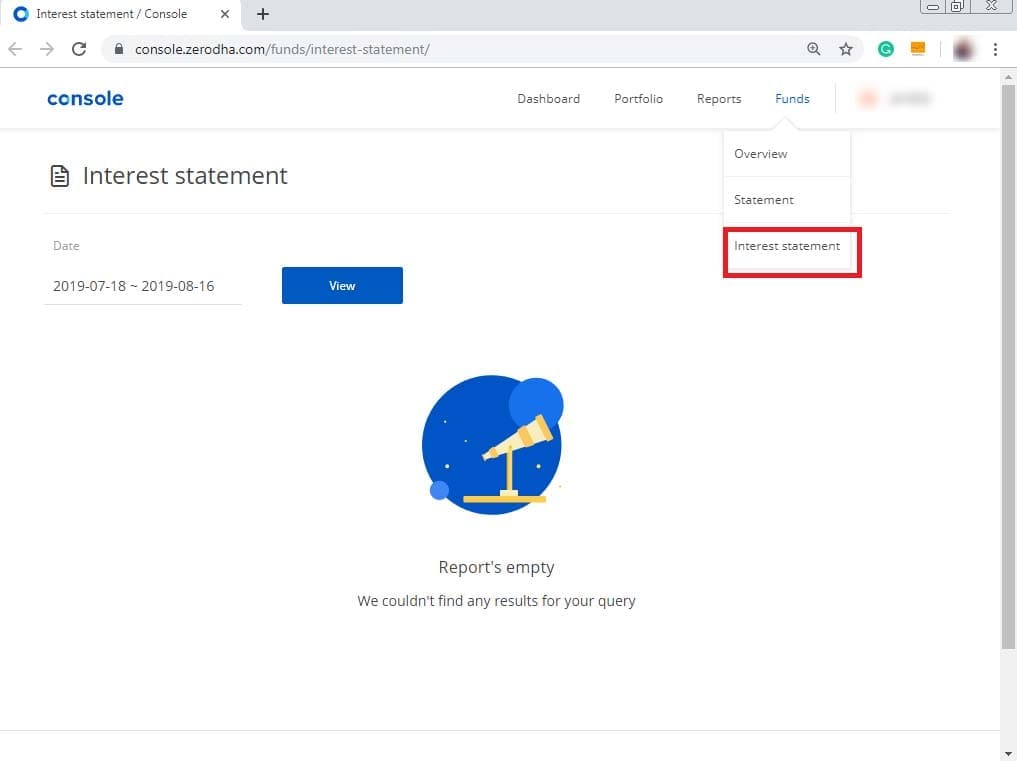
The interest statement is a detailed summary of the day-wise interest charges for the debit balance on a specific day for a given period of time.
Conclusion
In conclusion, Zerodha Console is a powerful tool for any trader or investor to monitor their portfolio and trading activities. It offers users all the features they need – including advanced analytics tools, customisation options, and customer service support – to effectively manage trades. Thanks to its intuitive UI and wide range of features, the new back office is an invaluable tool for anyone interested in managing their investments with ease.