
Amibroker is a powerful tool for traders who want to analyze the stock market and create trading strategies. With Amibroker’s AFL code-writing feature, you can write your own custom indicators, trading systems, and more. In this post, we’ll provide some general tips for writing AFL code in Amibroker, as well as examples of two popular indicators: the standard MACD and the colored MACD.
Getting Started with Amibroker AFL Code Writing
To start writing AFL code in Amibroker, you’ll need to understand what AFL code is and how it’s used. AFL stands for Amibroker Formula Language, which is a programming language designed specifically for Amibroker. AFL code is used to create custom indicators, trading systems, explorations, and more.
To write AFL code in Amibroker, you’ll need to have a licensed version of the software. Once you have it installed, you can open the AFL Editor by clicking on the “New > Formula” menu option. The AFL Editor will allow you to write and edit AFL code in a user-friendly interface.
In this post, I will provide you with some general tips on AFL code writing, followed by examples of two types of MACD indicators – the standard MACD and the colored MACD.
But before we dive into the examples, let’s first answer some frequently asked questions about the charting tool and also about AFL code writing.
FAQs
To write AFL code in AmiBroker, open the Formula Editor by clicking on Analysis > Formula Editor. You can then write your AFL code in the editor and save it as a new formula or add it to an existing one.
AmiBroker uses its own programming language called AFL (AmiBroker Formula Language).
No, AmiBroker does not use Python. It uses its own programming language called AFL.
To write an indicator in AmiBroker, you need to write the AFL code for the indicator and save it as a new formula. You can then apply the formula to a chart in AmiBroker to display the indicator.
Now that we’ve answered some of the basic questions about AFL code writing, let’s move on to some general tips that can help you write efficient and effective AFL code.
General Tips for AFL Code Writing
Plan Your Code: Before you start writing AFL code, it’s important to have a clear understanding of what you want to accomplish. Plan out the logic of your code, the variables you’ll need, and the functions you’ll use. This will make your code more organized and easier to read and debug.






Firstly, Use Comments: Comments are lines of code that are ignored by the compiler but are useful for explaining the purpose of your code. You need to use comments to describe what your code is doing, why you’re doing it, and any other relevant information.
Secondly, Use Functions: Functions are pre-written blocks of code that can be called multiple times. They can save you time and effort by allowing you to reuse code. Use functions for any repetitive tasks or calculations in your code.
Thirdly, Keep it Simple: AFL code can become complex quickly. Try to keep your code simple and easy to understand. Avoid nested loops and complicated conditional statements unless absolutely necessary.
Lastly, Test Your Code: Always test your code thoroughly before using it in a real-world trading scenario. Use backtesting to see how your code performs under different market conditions.
Now that you have a basic understanding of AFL code writing, let’s take a look at some examples of MACD indicators. Hence, start writing your codes by opening Formula Editor.
Example: Writing the MACD Indicator
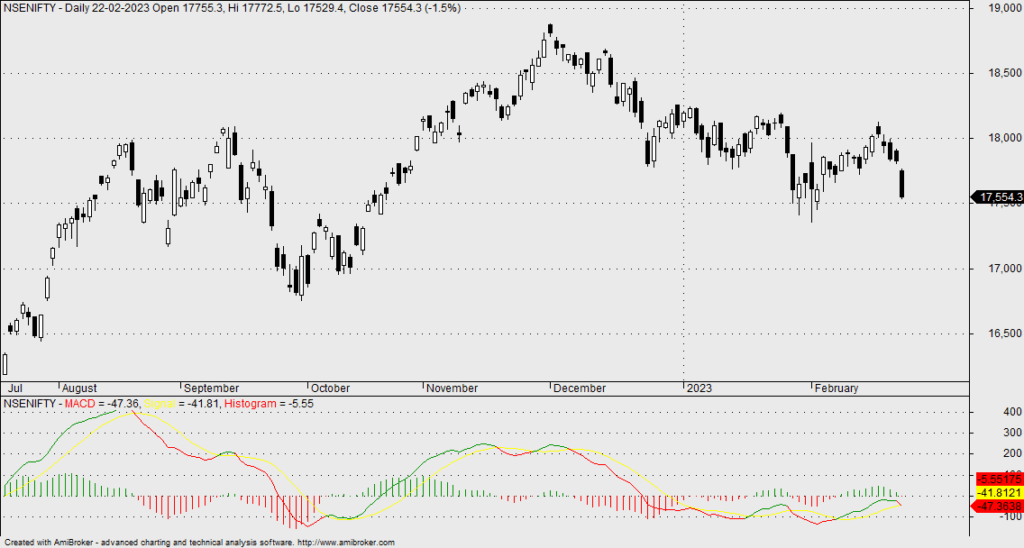
The MACD (Moving Average Convergence Divergence) indicator is a popular technical analysis tool used to identify trends and momentum. The standard MACD indicator is calculated by subtracting the 26-period exponential moving average (EMA) from the 12-period EMA.
Here’s the AFL code for the standard MACD indicator:
The code above defines the standard MACD indicator in Amibroker. It uses the MACD() and MA() functions to calculate the MACD line and the signal line respectively. The Hist variable calculates the difference between the MACD and signal lines to create the histogram. The Plot() function is used to display the MACD, signal, and histogram lines in different colors and styles.
To use the standard MACD indicator in Amibroker, simply copy and paste the above code into the AFL editor and run the formula.
Now, let’s take a look at how to create a colored MACD indicator in Amibroker.
Here’s the AFL code for the colored MACD indicator:
The code above is similar to the standard MACD code, but it includes an additional line that sets the color of the MACD and signal lines based on their relative positions. If the MACD line is above the signal line, I have set the color to green, indicating a bullish trend. Similarly, if the MACD line is below the signal line, the color will be red, indicating a bearish trend.

To use the colored MACD indicator, simply copy and paste the above code into the AFL editor and run the formula.
Conclusion
In conclusion, Amibroker is a powerful tool for technical analysis and trading, and the AFL language provides a flexible and customizable way to create indicators and trading strategies. Hence, by understanding the basic structure of AFL code and using the built-in functions and variables, you can create your own custom indicators and explore new trading ideas. Lastly, try out the standard and modified versions of the MACD indicators in Amibroker and see how they can enhance your trading strategies. Happy trading!